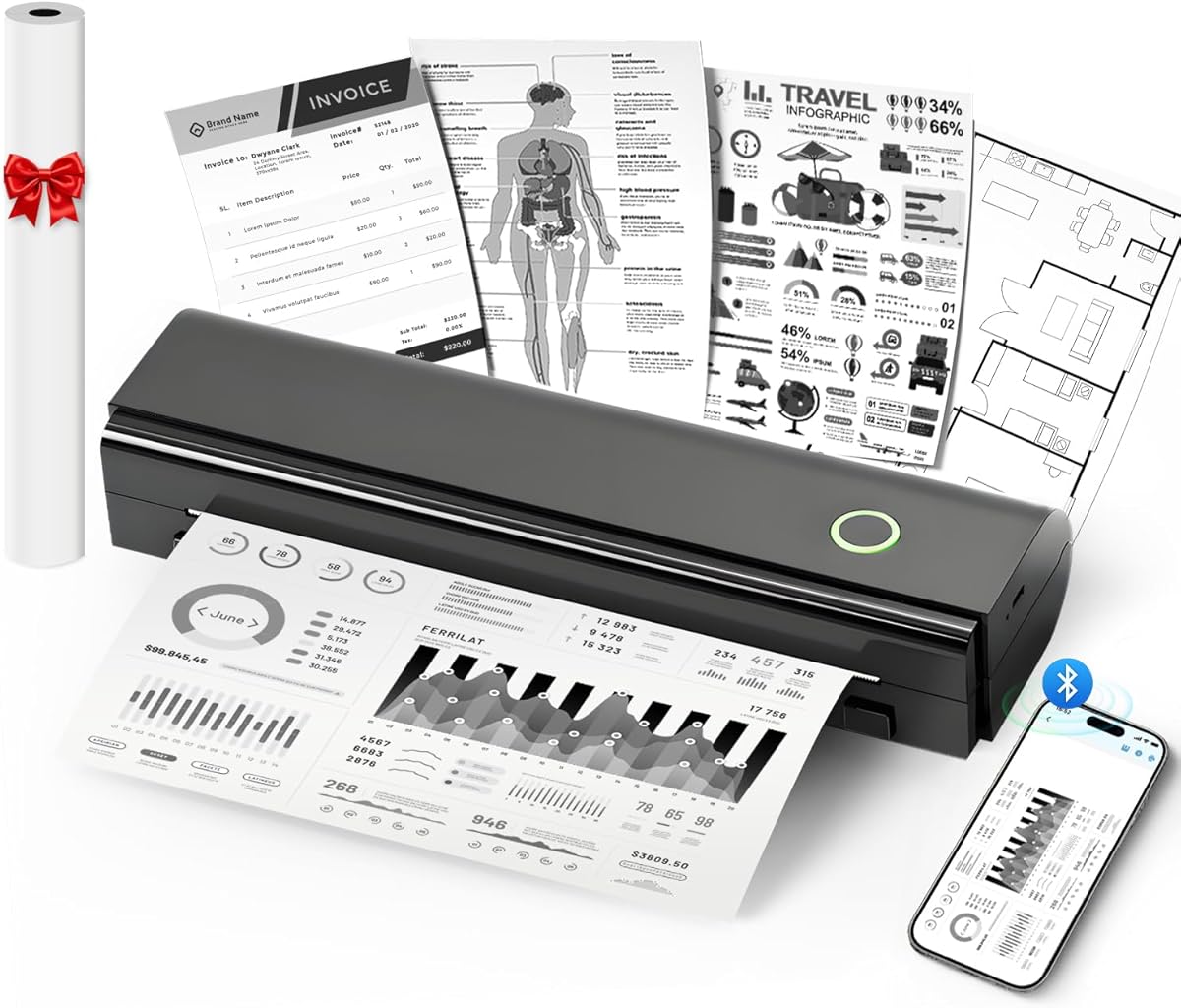
NDYIN N80
4.1Editor score
Bluetooth phone connection
Ink-free thermal printing
Rechargeable 1500mAh battery
Letter-size paper support
Printing from a Samsung phone should feel convenient rather than complicated, but the ideal printer depends on what you want to produce. Some people need polished color photos, while others print reports, invoices, school projects, labels, or travel documents. The right choice combines dependable Samsung connectivity, suitable print technology, manageable setup, and output that matches your routine.
This guide compares ten printers designed to work with smartphones or mobile operating systems, including options from Canon, HP, Liene, KODAK, and Samsung. We evaluated the documented functions, compatibility features, print formats, portability, paper handling, and practical trade-offs of each model. The list covers dedicated photo printers, portable thermal units, and compact all-in-ones for home or office use.
Each entry shows what the printer is best suited to handle and why it earned its place in the comparison. The leading choices include the Canon PIXMA TS6520 for versatile home printing, the N80 for affordable mobile documents, and the HP OfficeJet Pro 8125 for higher-volume office work. Product availability, features, and prices can change, so confirm current details before ordering.
4.1Editor score

4.2Editor score

3.9Editor score
As an Amazon Associate we earn from qualifying purchases.
The comparison below highlights the major differences among dedicated phone photo printers, portable thermal printers, and wireless all-in-one models. Pay particular attention to paper format, mobile connection method, scanning capability, and the volume of printing expected from your Samsung device.


The Liene M100 is a dedicated 4×6-inch photo printer built around Samsung phone use, and its 4.4 rating reflects a strong balance of convenience and output. It uses thermal dye sublimation rather than ordinary inkjet technology, allowing it to create full-color photographs with a laminated surface designed to resist water, scratches, fingerprints, and fading.
We may earn a commission when you buy through this link, at no additional cost to you.
Its most useful feature is the built-in hotspot. Once a Samsung phone joins that independent connection, the user can print selected images without relying on a nearby Wi-Fi network. The printer supports up to five simultaneous connections, making it practical for family gatherings, scrapbook projects, party activities, or a workspace where several people need to produce small prints. The supplied Liene app adds borders, filters, contrast and brightness adjustments, and ID or visa photo options.
The package is unusually complete for a compact photo printer: it includes 100 sheets of 4×6 paper, three color cartridges, and a sealed cassette intended to help protect the mechanism from dust. That makes the M100 convenient for immediate use, although long-term owners must purchase compatible Liene supplies when the included materials run out. Cleaning the print head promptly when smudges appear is also important for maintaining output quality.
This is the strongest recommendation for someone who primarily wants tangible photos from a Galaxy phone. It is less suitable for reports, multipage office documents, or large-format projects because it only produces 4×6-inch photos and has no scanner or copier. For a dedicated, social-friendly phone photo printer, however, the M100 combines an approachable setup with versatile editing and useful multi-device support.
The printer's own hotspot removes a common source of mobile printing frustration. Join the network through the relevant app, select an image, adjust it if desired, and begin printing. This makes the M100 particularly useful when a home, office, or event location has unreliable wireless internet.
Thermal dye sublimation transfers color into the photo paper before adding a protective laminated layer. That process supports vivid results, and the 4×6 format is large enough for scrapbooks, display boards, gifts, and keepsakes while remaining small enough to print casually.
We may earn a commission when you buy through this link, at no additional cost to you.
The NDYIN N80 is a portable thermal printer aimed at people who need documents close at hand, and it holds a 4.1 rating. It connects to a Samsung phone over Bluetooth using the Nada Print app, making it a practical option for travel, fieldwork, school, small offices, and other situations where carrying a full-size printer would be inconvenient.
We may earn a commission when you buy through this link, at no additional cost to you.
Because it uses direct thermal technology, the N80 does not require ink, toner, or ribbons. It prints on US Letter and A4 thermal paper at 203DPI, and the package includes a roll of US Letter paper. The device can also handle rolled paper, folded paper, and tattoo transfer paper, expanding its use beyond conventional documents. A built-in 1500mAh battery is advertised to produce up to 160 Letter-size pages following a full charge.
There are important limitations to understand. The N80 cannot use ordinary, uncoated paper, and its package does not include a charging adapter. Computer users must install a driver and connect through USB-C because Bluetooth is reserved for compatible mobile devices. The thermal output is also best suited to text, monochrome forms, images, and simple graphics rather than the nuanced color photography possible with an inkjet or dye-sublimation model.
The N80 is a compelling choice for mobile workers who value portability, simple pairing, and freedom from ink cartridges. It is less suitable for a family that routinely prints standard office paper or wants a scanner. For Galaxy owners who need lightweight, battery-powered document access on the go, the N80 provides a focused set of capabilities.
The rechargeable 1500mAh battery and compact 1.5-pound body help explain the N80's travel orientation. A full charge is stated to support as many as 160 Letter-size thermal pages, making it useful for itineraries, appointments, and workdays where printed copies are needed away from a fixed office.
After downloading the Nada Print app, a Samsung phone can connect directly to the printer over Bluetooth. The absence of a required Wi-Fi network is a meaningful advantage in classrooms, vehicles, temporary workspaces, and other areas where network access may be limited.
We may earn a commission when you buy through this link, at no additional cost to you.
The HP DeskJet 2923 is a compact wireless all-in-one intended for basic home printing, and it carries a 3.7 rating. It prints color, copies, and scans while fitting into a relatively small footprint. That combination makes it a straightforward option for Galaxy users who want one household device rather than a printer dedicated exclusively to photographs.
We may earn a commission when you buy through this link, at no additional cost to you.
Its 60-sheet input tray is adequate for light personal use, and the listed print speeds reach 7.5 pages per minute in black and 5.5 pages per minute in color. The HP app supports printing, scanning, copying, and fax-related functions from a phone, while dual-band Wi-Fi is designed to detect and resolve many connection issues automatically. HP AI formatting can remove unwanted content from web pages and emails for cleaner layouts.
The trade-off is that this is a basic model rather than a high-volume office printer. Its small tray, modest paper capacity, and lower rating suggest that buyers should expect convenience and affordability rather than advanced productivity. The 60-sheet input tray also means frequent refills for families producing substantial school projects or a busy home office.
The DeskJet 2923 makes sense for occasional recipes, to-do lists, letters, financial records, and simple school assignments. It is not the best choice for a business that needs automatic duplex printing, an automatic document feeder, or high-volume output. For straightforward Samsung phone printing in a compact home setup, it remains a functional and approachable option.
Combining a color printer, scanner, and copier reduces the need for separate desktop devices. A Galaxy user can send a document through the HP app, while the physical controls and LCD provide a straightforward fallback for basic jobs when a phone is not at hand.
Dual-band Wi-Fi can connect on either 2.4GHz or 5GHz networks, depending on the router and surrounding conditions. This broader compatibility gives the printer a better chance of establishing a stable mobile connection in a busy home or mixed-device wireless environment.
We may earn a commission when you buy through this link, at no additional cost to you.
The HP DeskJet 2955 is a wireless color inkjet all-in-one with a 3.7 rating. Its product title identifies the same core format as the DeskJet 2923: printing, copying, and scanning in a home-oriented device. It is a practical option for Galaxy owners who want familiar HP mobile support without moving into a larger office model.
We may earn a commission when you buy through this link, at no additional cost to you.
The supplied listing data is intentionally limited, confirming the product identity, wireless all-in-one category, image, rating, and physical weight of 10.450 pounds. That means buyers should consult the current product page for current page-yield information, connectivity details, dimensions, included accessories, and operating requirements. The guide avoids inferring specifications that are not confirmed in the source material.
Its 3.7 rating places it below the Canon PIXMA TS6520 and several portable models. As a result, the DeskJet 2955 is best viewed as a straightforward household printer rather than a feature leader. Confirming duplex support, paper size, and mobile app behavior before purchase is particularly important for buyers who have more demanding document needs.
The model can suit someone who wants a conventional color printer for letters, recipes, forms, and occasional images, controlled from a Samsung phone over the wireless connection. It is less compelling for heavy print volumes, professional photo work, or a workflow that needs an automatic document feeder. Its strongest appeal is the simplicity of an HP wireless all-in-one for routine home tasks.
The DeskJet 2955 follows the standard compact inkjet format used for everyday documents. It gives users one appliance for color output, copying, and scanning instead of requiring separate devices for those tasks.
Because the available listing information is brief, check the live product page for supported paper sizes, print speed, connection methods, and consumable details. This is especially important if your Samsung workflow depends on automatic duplexing, borderless photos, or specific app features.
We may earn a commission when you buy through this link, at no additional cost to you.
The Canon PIXMA TS6520 is a compact wireless all-in-one with a 4.2 rating, and it offers one of the most balanced feature sets for printing from a Samsung phone. It prints color documents and photos, scans, copies, and supports automatic two-sided printing. A 1.42-inch monochrome OLED provides quick access to ink status, printer status, and settings.
We may earn a commission when you buy through this link, at no additional cost to you.
Its two-cartridge hybrid ink system is designed to produce sharp text and vivid colors for both documents and photographs. The printer supports media up to 8.5 by 11 inches, with or without borders, while automatic duplexing helps conserve paper. Dual-band Wi-Fi on 2.4GHz or 5GHz networks supports more stable placement throughout a home or office.
Samsung users can print through the Canon PRINT app, Apple AirPrint, and Mopria Print Service. That menu of options makes it easier to send images and documents through a familiar mobile workflow rather than relying on a single proprietary route. The main limitation is the compact display and the modest two-cartridge ink arrangement, which may not appeal to demanding photo editors or high-volume offices.
The TS6520 is ideal for hybrid workers, students, and families who alternate between color reports, recipes, school projects, receipts, and photographs. It also suits users who value automatic duplexing in a small footprint. For a general-purpose Samsung-compatible printer that can cover photos and office essentials without becoming a large office machine, it is a particularly well-rounded recommendation.
Two-sided printing reduces paper consumption and gives Samsung users a practical way to prepare handouts, reports, and notes. The feature distinguishes the TS6520 from more basic compact all-in-ones while preserving a relatively small footprint.
Canon PRINT, AirPrint, and Mopria support offer several paths from a Galaxy phone to the printer. Users can select the route that best matches their document, image, or app workflow, which is particularly helpful for mixed personal and professional use.
We may earn a commission when you buy through this link, at no additional cost to you.
The Canon PIXMA TR4720 is a wireless four-function inkjet for home use with a 3.9 rating. It combines printing, copying, scanning, and faxing, while its automatic document feeder and automatic two-sided printing distinguish it from printers focused only on casual photo output. Mobile printing makes it directly relevant to users who manage paperwork from a Galaxy phone.
We may earn a commission when you buy through this link, at no additional cost to you.
The printer produces documents and borderless photos up to 8.5 by 11 inches, and its input capacity reaches 100 sheets. A borderless 4×6-inch photo can take approximately 65 seconds, while listed Letter-document speeds are about 8.8 images per minute in black and 4.4 images per minute in color. Those numbers are sufficient for home use but considerably slower than the HP OfficeJet Pro 8125.
Easy cartridge installation and replacement are explicit design goals, while ENERGY STAR certification and low stated power consumption reinforce the home-office positioning. Alexa can provide low-ink notifications and may support smart reorders when enrolled. That adds another way to manage consumables, though users should consider whether that feature suits their preferred routine.
The TR4720 is a good fit for a home office that still receives paper forms, wants a fax function, and values the automatic document feeder. It is less suitable for a busy shared office or a photo enthusiast wanting advanced color ink behavior. For ordinary documents and mixed mobile workflows, it provides a helpful combination of functions in a home-friendly package.
Printing, scanning, copying, and built-in fax support cover the core document functions often needed by households working from home. Consolidating these tasks reduces the need to move documents among separate machines and keeps the phone-centered workflow more coherent.
The automatic document feeder and automatic two-sided printing improve efficiency for multi-page sets. These are useful features for contracts, forms, assignments, and records that would otherwise require repeated manual handling.
We may earn a commission when you buy through this link, at no additional cost to you.
The Gloryang portable thermal printer carries a 4.2 rating and is designed for mobile document printing from iOS and Android devices, including compatible Samsung phones. It connects by Bluetooth through the Jadens Printer app and weighs 1.75 pounds. The package includes the printer, a carrying case, three thermal paper rolls, a charging cable, a manual, and a guide card.
We may earn a commission when you buy through this link, at no additional cost to you.
Its inkless design eliminates the need for cartridges, toner, or ribbons. The built-in paper bin helps control paper storage, while two loading methods and a supported width of two to 8.5 inches provide flexibility for contracts, office documents, images, and design drawings. The printer can also be connected to a laptop or computer after its driver is installed.
Compatibility is more restrictive than the headline size suggests. The manufacturer specifically states that only compatible Gloryang thermal paper should be used, not ordinary paper, inkjet media, or plain sheets. Thermal results also work best for monochrome text and simple graphics. Buyers should not choose this model for photographic color output or a broad range of standard paper stocks.
The Gloryang is a strong fit for travelers, students, and mobile professionals who value a complete portable kit. The included case and extra rolls make it easier to carry and sustain away from an office. For Galaxy users who need a compact thermal printer for agreements, notes, and everyday records, it offers a more complete package than many similarly sized alternatives.
The included carrying case protects a device designed to move between a vehicle, backpack, hotel, or temporary office. Its slim 1.7-inch thickness and 1.75-pound weight help it fit into spaces where a conventional inkjet would be impractical.
Because the printer depends on compatible thermal stock, owners should plan supplies before an important trip. Keeping one of the three included rolls in reserve provides a practical backup, but regular users will need to identify an ongoing source of compatible paper.
We may earn a commission when you buy through this link, at no additional cost to you.
The KODAK Step is a palm-sized instant photo printer for iOS and Android phones, and its 4.4 rating places it among the strongest products in this guide. It pairs through Bluetooth or NFC and turns selfies, portraits, and social media posts into physical 2×3-inch photos with a sticky back.
We may earn a commission when you buy through this link, at no additional cost to you.
Its ZINK technology uses dye crystals embedded in the paper, so the printer operates without traditional ink cartridges. The resulting photos are described as detailed, colorful, and resistant to moisture, rips, tears, and smudges. The package includes the printer, a micro USB charging cable, a starter pack of KODAK ZINK photo paper, a quick start guide, and a limited warranty.
The KODAK app expands the printer beyond direct image reproduction. Users can build collages, apply filters, add borders, stickers, and text, and personalize snapshots before sending them to the printer. A built-in lithium-ion rechargeable battery is stated to produce 25 photos from a full charge, while the body weighs less than a pound for effortless portability.
The Step is ideal for journaling, scrapbooking, party favors, gift decoration, and small social prints that can be placed in an album or stuck onto a surface. Its limitation is size: 2×3-inch photos are smaller and more intimate than 4×6-inch prints. If a Galaxy owner values pocketability and creative editing more than large-format photos, the KODAK Step delivers a particularly attractive mobile experience.
The adhesive backing turns each small print into a ready-to-place keepsake. Users can add photographs to planners, gift cards, scrapbook pages, party decorations, and craft projects without needing separate adhesive or a conventional photo paper sheet.
Collages, filters, borders, stickers, and text give the printer more personality than a straightforward image-output device. Galaxy users can prepare a more personal print before sending it over the wireless connection.
We may earn a commission when you buy through this link, at no additional cost to you.
The HP OfficeJet Pro 8125 is the most productivity-focused option in this guide, combining color printing, scanning, copying, an automatic document feeder, and duplex printing. It carries a 3.9 rating and suits home offices that produce reports, presentations, flyers, and other professional-looking color documents from a Samsung phone.
We may earn a commission when you buy through this link, at no additional cost to you.
Document throughput reaches 20 pages per minute in black and 10 pages per minute in color. A 225-sheet input tray reduces refills, while the automatic document feeder handles multipage sets and automatic duplexing reduces paper consumption. Its 2.7-inch color touchscreen presents a phone-like interface for navigating status information, settings, and common workflows without needing a computer.
The HP app supports printing, scanning, copying, and faxing from a smartphone, and dual-band Wi-Fi is designed to maintain reliable wireless access. HP AI can format web pages and emails by removing unwanted content, while HP Wolf Essential Security helps protect the network. The printer is made with more than 45% recycled plastic content, adding a sustainability consideration to its office-focused design.
The principal limitation is cartridge compatibility. The product is intended to work only with cartridges containing original HP chips or circuitry, and it will block cartridges using non-HP chips or circuitry. It is also larger and more capable than a basic home model, so buyers should confirm desk space. For a high-output Samsung-compatible office printer, however, this is the premium feature set in the comparison.
Faster page speeds, a 225-sheet tray, an automatic document feeder, and automatic duplexing work together to reduce interruptions. These features matter when a home office regularly handles batches of proposals, reports, invoices, or client materials.
The HP app puts core functions within reach of a Galaxy phone, while the touchscreen gives users a clear local interface. That combination helps maintain productivity whether documents are initiated on mobile devices or at the desk.
We may earn a commission when you buy through this link, at no additional cost to you.
The HP Samsung Xpress SL-M2835DW/XAA is a wireless monochrome printer with a 3.8 rating. It combines the familiar Samsung printer name with HP support and is aimed at users who need fast, sharp documents rather than color photos. Its most notable phone-oriented feature is NFC printing, which allows a compatible device to initiate a print with a tap.
We may earn a commission when you buy through this link, at no additional cost to you.
The stated speed reaches 29 pages per minute, making it the fastest monochrome rate documented in this comparison. That figure is useful for invoices, reports, forms, shipping documents, and other text-heavy work. Wireless connectivity also allows a Samsung phone to send jobs without a USB connection, while the monochrome focus can help keep the intended workspace focused on business documents.
This is not an all-in-one model in the sense used by the Canon and HP multipurpose printers in the list. The supplied information identifies printing, wireless support, NFC operation, fast output, and sharp professional-quality results, but it does not confirm scanning or copying. It is also monochrome, making it unsuitable for color images and photo projects.
The SL-M2835DW/XAA is a logical choice for a Samsung-oriented home office that primarily produces black-and-white documents and values speed. Buyers should verify current driver support for their Galaxy model, available toner, paper specifications, and network features on the product listing. For a text-focused setup, it provides a clear reason to consider the Samsung-branded option.
A documented speed of up to 29 pages per minute gives the printer an advantage when routine paperwork must be produced quickly. It is especially relevant to invoices, internal reports, forms, and other monochrome business documents.
NFC provides a convenient path from a compatible phone to the printer. Users can place the device near the printer and use the tap workflow, reducing the number of steps required for a recurring print job.
We may earn a commission when you buy through this link, at no additional cost to you.
The right Samsung phone printer depends on print type, volume, paper needs, and mobility. Start with the documents and photos you actually produce, then review the connection method, supplied software, consumables, and physical space before choosing a model.
Start by separating photo output from document output. A phone photo printer such as the Liene M100 or KODAK Step is designed to create small physical photographs, while an all-in-one inkjet is better suited to letters, forms, recipes, reports, and copies. A thermal unit such as the N80 or Gloryang model focuses on portable monochrome documents and requires compatible thermal paper. Choosing by use case prevents you from paying attention to a feature that does not improve your actual workflow.
Choose by output, not by the word wireless. List the paper sizes, color needs, borderless photo sizes, and document volumes you expect, then match them to the printer's documented capabilities.
A printer can be wireless without offering the most convenient mobile experience. HP models use the HP app, Canon models support Canon PRINT, AirPrint, and Mopria, while dedicated photo and thermal devices use their own applications. Confirm that the printer is compatible with your Galaxy phone and that its app can send the particular file types you intend to print. Also determine whether the printer needs the same Wi-Fi network as the phone or creates its own connection.
For the smoothest setup, verify app availability, network bands, and direct pairing before buying.
Photo printers use different technologies with different results. The Liene M100 uses thermal dye sublimation to create 4×6-inch color photos, while the KODAK Step uses ZINK paper with embedded dye crystals for smaller 2×3-inch sticky-back prints. Standard color inkjets can also produce photographs, but the Canon PIXMA models emphasize document versatility alongside photo support. Consider size, color depth, surface durability, paper cost, and whether prints need borders or adhesive backing.
Match the print technology to the keepsakes you want, rather than choosing solely from maximum resolution.
Portable thermal printers are not general-purpose replacements for ordinary inkjet printers. The N80 accepts US Letter and A4 thermal paper, while the Gloryang model specifies compatible Gloryang thermal stock. Neither should be expected to print reliably on regular plain paper. Inkjet all-in-ones accept conventional sheets but require appropriate ink cartridges. Verify supported sizes and proprietary media before purchasing, especially when a printer will travel or serve as your only output device.
Always check the required paper type and dimensions before ordering a thermal model.
If your Samsung phone is your main computer, scanning and copying can be nearly as important as printing. The Canon PIXMA TS6520, TR4720, HP DeskJet 2923, HP DeskJet 2955, and HP OfficeJet Pro 8125 provide all-in-one functions. Automatic document feeders, automatic duplex printing, larger input trays, and faster color speeds are especially useful for home offices. A dedicated photo printer or compact thermal unit may be simpler, but it will not replace a full document workflow.
Prioritize automatic document feeding and duplexing when handling frequent multi-page jobs.
Portability is more than weight. A useful mobile printer should support a direct wireless method, fit in the intended bag or case, and run from an internal battery for extended periods. The N80 includes a 1500mAh rechargeable battery and weighs 1.5 pounds, while the Gloryang unit weighs 1.75 pounds and comes with a case. The KODAK Step weighs less than a pound and uses a rechargeable lithium-ion battery. Compare dimensions, battery endurance, charging method, and required accessories before deciding.
For travel, prioritize self-contained power and a dependable phone connection over office-only features.
Consider what the printer consumes after the included supplies run out. The Liene M100 requires matching color cartridges and 4×6 paper. The KODAK Step uses ZINK photo paper, and both thermal models require specific rolls. Inkjet printers use consumable cartridges and conventional media, with some HP models offering an Instant Ink enrollment option. Look at cartridge handling, paper availability, included quantities, and whether a proprietary system could limit future choices.
Factor ongoing paper and ink needs into the decision, not just the initial purchase.
Light household use and high-volume office work reward very different designs. A compact DeskJet may be sufficient for occasional letters, while the OfficeJet Pro 8125 offers faster speeds, a 225-sheet tray, an automatic document feeder, and duplex printing for sustained workloads. Portable thermal units support scheduled documents but are constrained by paper rolls. Read speed and capacity figures in context and avoid selecting a high-volume printer for a handful of monthly photos.
Select the smallest system that comfortably handles your busiest routine.
Begin by unpacking the printer, removing any transport restraints, installing the correct ink or toner, and loading the specified paper. Place the unit on a stable, level surface with enough clearance around the feed and output areas. For an inkjet model, install cartridges according to the manufacturer's instructions and allow the setup cycle to finish. For thermal printers, insert compatible paper and confirm that the app's paper-size setting matches the loaded roll.
Connect the Samsung phone through the process specified for that model. This may involve joining the printer's built-in hotspot, using Bluetooth or NFC, or connecting both devices to the same dual-band Wi-Fi network. Open the appropriate app, complete any printer-detection or network-location steps, and send a short test page or sample photo. Adjust paper type, orientation, border settings, copies, and color mode before printing a larger job.
For ongoing care, use only specified inks, toner, and paper, and keep the print area clean. Thermal users should store paper away from excessive heat and moisture because specialized media can be sensitive to storage conditions. Inkjet users should avoid smearing freshly printed pages and run cartridge or print-head maintenance when the manufacturer recommends it. Periodically confirm that the phone app still recognizes the printer, and restart the printer and network connection if a queued job stalls.
Most of the models listed support mobile printing through a dedicated app, AirPrint, Mopria, Bluetooth, NFC, or a built-in hotspot. Compatibility is strongest when the Samsung phone and printer use the same app or service. Before buying, verify the current operating-system requirements and connection method on the product page, particularly for older thermal models and specialized photo applications.
The Liene M100 is the strongest dedicated choice for larger 4×6-inch color photos, while the KODAK Step is ideal for small 2×3-inch sticky-back prints and portable creative projects. The Canon PIXMA TS6520 is the more versatile option when photos and ordinary documents need the same printer. Photo quality preferences and acceptable paper format should guide the final choice.
No. The N80 and Gloryang portable printers require compatible thermal paper because they use heat to create the image. Ordinary plain paper will not produce an acceptable print. Always check the supported paper dimensions and purchase the appropriate thermal stock, particularly when the printer will be used away from home or office.
A dedicated phone printer is usually simpler for photos, scrapbooks, and small personal projects. A wireless all-in-one is more useful when you also need standard documents, copies, scans, multipage handling, or borderless photos on standard media. The Canon PIXMA TS6520 is a strong middle ground for users who need both kinds of output.
That depends on the model. The Liene M100 creates its own hotspot, the N80 and Gloryang use Bluetooth, and the KODAK Step supports Bluetooth or NFC. The Canon and HP all-in-ones generally connect through a wireless network, though mobile functions may also support direct or service-based workflows. Check the selected printer's current connection instructions before relying on a specific setup.
The HP OfficeJet Pro 8125 is the most productivity-oriented model in the guide. It offers up to 20 black pages per minute, a 225-sheet input tray, an automatic document feeder, duplex printing, and a color touchscreen. The Canon PIXMA TR4720 is a smaller alternative that also includes an automatic document feeder, automatic two-sided printing, and built-in fax.
Desktop inkjets and all-in-ones require mains power, while portable models offer more flexibility. The N80 includes a rechargeable 1500mAh battery, and the KODAK Step has a built-in lithium-ion battery stated to print 25 photos per charge. The Gloryang includes a charging cable and is designed for portable use. Confirm that a suitable charging adapter is included, particularly for the N80.
Choose monochrome for contracts, invoices, forms, school notes, and high-volume text where sharp black output is the priority. Choose color for photographs, charts, invitations, school projects, and presentation materials. The Samsung Xpress SL-M2835DW/XAA focuses on fast monochrome documents, whereas the Canon and HP all-in-ones support color and a broader range of creative tasks.
The Canon PIXMA TS6520 is the most versatile overall recommendation because it combines color documents, photos, scanning, copying, automatic duplexing, dual-band Wi-Fi, and multiple mobile printing services in a compact footprint. The NDYIN N80 is the focused portable choice for ink-free thermal documents, and the HP OfficeJet Pro 8125 is the premium productivity pick for home offices that need faster output, an automatic document feeder, and larger paper capacity.
Start with the kind of output you need rather than the printer category. Choose the Liene M100 for 4×6-inch photos, the KODAK Step for pocket-sized adhesive prints, a thermal model for travel documents, and an all-in-one for mixed household or office work. Within those categories, verify Samsung app support, paper requirements, consumable availability, and the amount of space the printer will occupy.
Features, compatibility, availability, and prices can change over time, so confirm the latest listing and manufacturer guidance before making a final purchase. Checking current app requirements and available media in advance will prevent most setup disappointments and help ensure that your chosen printer integrates smoothly with your Samsung phone.