
VEIKK VK1200
4.2Editor score
Compact 11.6-inch display
Two battery-free styluses
Six dedicated shortcut keys
A drawing tablet with screen can make digital art feel more immediate by placing your artwork directly beneath the pen. The best affordable models balance an accurate display, responsive stylus, dependable shortcut controls, and a connection process that works smoothly with an existing computer.
This roundup compares ten pen displays and standalone drawing tablets across screen size, resolution, color coverage, pressure levels, tilt support, shortcut controls, portability, operating-system compatibility, and included accessories. The selections range from compact 10.1-inch systems to larger 15.6-inch workspaces, giving beginners and experienced creators useful options.
Each review identifies the product's strongest feature, practical limitations, and ideal user. The three leading picks provide quick recommendations, while the full comparison helps reveal which inexpensive drawing tablet with screen best fits your software, workspace, and creative habits. Prices and availability can change, so confirm current listings before purchasing.
4.2Editor score

4.4Editor score

4.5Editor score
As an Amazon Associate we earn from qualifying purchases.
The table below compares all ten selections by display, stylus, controls, and connectivity, making it easier to identify the model that matches your creative priorities.




The XP-PEN Artist12 combines an 11.6-inch 1920-by-1080 IPS display with an 8192-level battery-free stylus, earning a 4.4 rating among users. Its standout quality is the combination of a compact footprint, a programmable touch bar, six customizable shortcut keys, and broad compatibility with major illustration and design applications.
We may earn a commission when you buy through this link, at no additional cost to you.
Drawing directly over the image is intuitive because the screen displays the canvas at a useful size without requiring a separate monitor in front of the artist. The included P06 passive pen has a hexagonal body, flexible grip, rear digital eraser, and 8192 pressure levels. A touch bar can handle zooming and scrolling, while the physical shortcut keys can be remapped through the XP-PEN driver for functions such as brush selection, undo, and tool changes.
The 72% NTSC specification, described by the manufacturer as 100% sRGB, is suitable for mainstream digital illustration, sketching, education, photo editing, and animation. The screen also includes an anti-reflective protector. The main compromise is that this is a computer-dependent pen display rather than a standalone tablet, so a laptop or desktop with suitable HDMI and USB-A connections—or appropriate adapters—is necessary.
The Artist12 is a strong recommendation for students, illustrators, and home users who want a direct drawing experience without a large display. Its combination of useful controls, portable dimensions, broad software support, and a responsive passive pen makes it the most balanced overall choice in this roundup.
The 11.6-inch full HD IPS panel gives artists a clear view of their work while keeping the device compact. The passive P06 pen avoids battery charging and provides 8192 pressure levels, a rear eraser, and a grip designed for extended drawing sessions.
Six configurable keys handle common actions, while the programmable touch bar adds zooming and scrolling. These controls can reduce reliance on the mouse, particularly in illustration, animation, note-taking, and remote instruction.
We may earn a commission when you buy through this link, at no additional cost to you.
The VEIKK VK1200 V2 is a well-equipped 11.6-inch pen display with a 4.3 rating. It combines full-laminated construction, anti-glare glass, 8192 pressure levels, tilt recognition, two battery-free pens, and a convenient single-cable USB-C connection at an appealing entry point for new digital artists.
We may earn a commission when you buy through this link, at no additional cost to you.
Its laminated screen is one of the most important features in this category because bonding the glass and display helps minimize parallax and cursor offset. The 1920-by-1080 IPS panel and 72% NTSC color gamut are appropriate for everyday drawing, while the included pens support up to 60 degrees of tilt. Six programmable keys can be adjusted to suit a particular application or personal workflow.
Setup is straightforward when the computer has USB-C, since one full-featured cable can carry data, power, and DisplayPort signals. Systems without USB-C can use the included HDMI and USB-A-to-C cables. Compatibility extends to Windows 7 and later, macOS 10.12 and later, and Linux, although the device must remain connected to a computer.
This model is a convincing choice for students, hobbyists, and first-time buyers who value a direct drawing surface without spending more for premium color calibration or a larger workspace. Its compact metal body, broad accessory bundle, and straightforward connectivity make it a particularly practical budget recommendation.
Full-lamination joins the glass to the display more closely than a conventional layered panel. The result is improved cursor alignment and a more convincing pen-over-screen sensation, especially when sketching fine lines or inspecting small details.
Two pens, 28 replacement nibs, a holder, an artist glove, and a cleaning cloth provide the basic accessories needed for immediate use. The package is particularly helpful for beginners who would otherwise need to purchase replacement nibs separately.
We may earn a commission when you buy through this link, at no additional cost to you.
The GAOMON PD1161 is an 11.6-inch full HD pen display with a 4.3 rating and a notably generous control layout. Its eight physical shortcut keys and two pen buttons can be programmed, while the included AP50 battery-free stylus provides 8192 pressure levels and tilt recognition.
We may earn a commission when you buy through this link, at no additional cost to you.
The IPS panel displays 16.7 million colors with a 72% NTSC, described as 100% sRGB, gamut. A preinstalled matte film reduces glare and reflection and gives the surface a more paper-like appearance. Users can also use the device for digital notes, mind maps, diagrams, collaboration, online education, and remote work in addition to illustration and image editing.
Its strongest advantage is control density. Eight side keys plus two pen buttons offer more shortcut opportunities than many similarly compact displays, and the driver lets users tailor them to different tasks. The trade-off is a potentially busy bezel and the need to connect the tablet to a computer with HDMI and USB ports. A power adapter should be used if the computer cannot supply sufficient power.
The PD1161 suits artists, note-takers, and educators who want direct handwriting and configurable controls at a moderate cost. It is especially appealing for users who spend significant time switching tools, layers, brushes, or presentation functions while working.
Eight side keys and two stylus buttons create a large custom control palette. Artists can assign frequently used actions such as zoom, undo, or tool switching without repeatedly reaching for a keyboard.
The preinstalled matte film softens reflections and makes the screen feel closer to paper. It is a useful feature for extended sketching, handwriting, classroom instruction, and remote collaboration.
We may earn a commission when you buy through this link, at no additional cost to you.
The refurbished Artisul D16 offers a large 15.6-inch 1920-by-1080 workspace, 8192-level pressure sensitivity, and a 5 rating. It is the most spacious option in this list and gives illustrators, animators, designers, and teachers room to spread out complex compositions or edit detailed images.
We may earn a commission when you buy through this link, at no additional cost to you.
The full-laminated display is designed to improve cursor positioning, while the specified 76% Adobe RGB gamut and side brightness control support color-oriented work. Its P58B battery-free stylus provides 8192 pressure levels and a stated reading rate of 223PPS. Seven programmable hotkeys and a quick dial support undo, brush sizing, page scrolling, and other adjustable actions.
The stand adjusts to six angles, which is valuable on a display this size, and the product is intended for both left- and right-handed users. Since this is a refurbished listing, the exact physical condition may differ from a new unit, and buyers should review the seller's refurbishment details carefully. It also requires a connected PC or desktop.
Choose the D16 when workspace matters more than minimum footprint or factory calibration. Its large canvas and quick controls make it especially useful for digital painting, animation, graphic design, online teaching, and use as a second display.
A 15.6-inch active area offers a substantially larger drawing zone than the compact 11.6-inch alternatives. Artists can work on broad compositions, multiple timeline elements, or detailed reference material without constantly zooming and scrolling.
The adjustable stand supports six angles, helping users find a more natural drawing posture. Side brightness adjustment and a prominent quick dial make the large display easier to operate during extended sessions.
We may earn a commission when you buy through this link, at no additional cost to you.
The HUION Kamvas 13 (Gen 3) earns a 4.5 rating through its 13.3-inch laminated display, 16384 pressure levels, factory calibration, and strong color specifications. It is the most advanced premium selection here for artists who care about calibrated color, refined pen control, and a professional control layout.
We may earn a commission when you buy through this link, at no additional cost to you.
PenTech 4.0 technology includes 16384 pressure levels, 2g initial activation force, and three customizable side buttons. The display claims an average Delta E below 1.5, 16.7 million colors, 99% sRGB coverage, and Rec.709 support, and a factory calibration report adds confidence in consistent output. Its single USB-C cable simplifies a computer-based setup.
Five shortcut keys and dual dial buttons offer quick access to common operations, while the ST300 stand supports multiple working angles. Compatibility includes Windows 10 or later, macOS 10.12 or later, compatible Android devices, and Ubuntu 20.04 LTS. The main disadvantage is its higher position in the market compared with the more basic pen displays in this roundup.
This is the recommended choice for illustration, digital painting, photo editing, and design work where display consistency matters. It is also attractive to users ready to move beyond a beginner tablet without immediately choosing the largest possible screen.
A factory calibration report, 99% sRGB coverage, and an average Delta E below 1.5 make this a strong choice for color-sensitive workflows. The display is better suited to discerning users than the more basic 72% NTSC models.
The PenTech 4.0 stylus offers 16384 pressure levels and a 2g initial activation force for light, responsive marks. Dual dials, five shortcut keys, and three pen buttons make frequently used controls available without cycling through software menus.
We may earn a commission when you buy through this link, at no additional cost to you.
The UGEE UE16 combines a large 15.4-inch full-laminated display with 16384 pressure levels and a claimed 143% sRGB gamut, earning a 4.5 rating. It targets creators who want both ample workspace and a high specification color display without moving to a top-tier professional model.
We may earn a commission when you buy through this link, at no additional cost to you.
Four color-space options—sRGB, Adobe RGB, DCI-P3, and black-and-white mode—allow users to adapt the presentation to different creative tasks. The 8-bit display can reproduce 16.7 million colors. The included U-Pencil is slim, supports 16K pressure, and adds two customizable hotkeys plus a pressure-sensitive eraser.
Eight physical shortcut keys and a scroll wheel with four preset functions make the tablet efficient for repeated tool changes. Compatibility includes Windows, macOS, Chrome OS, Android, and Linux, as well as major drawing and design applications. The three-in-one cable is listed as packed separately, so buyers should verify the package contents and use suitable connection hardware.
The UE16 is a compelling option for digital painting, illustration, design, and tablet-based learning. Its large screen and color flexibility favor users who regularly work in detailed applications, although the separate cable and computer requirement should be considered before purchase.
Switching among sRGB, Adobe RGB, DCI-P3, and monochrome modes helps tailor the display to illustration, design review, and focused black-and-white work. The wide claimed sRGB coverage gives this model an advantage over more basic 72% NTSC displays.
Eight shortcut keys and a four-function wheel place essential commands within reach. Two stylus buttons and a pressure-sensitive eraser further reduce the need to move between the pen and a conventional input device.
We may earn a commission when you buy through this link, at no additional cost to you.
The VEIKK VK1200 is an 11.6-inch 1920-by-1080 IPS pen display with a 4.2 rating. It offers 8192 pressure levels, tilt recognition, two battery-free pens, six shortcut keys, 28 replacement nibs, and an artist glove, making it a clear beginner-oriented package.
We may earn a commission when you buy through this link, at no additional cost to you.
The pen's tilt function lets users vary the angle of broad strokes and shading without constantly rotating the stylus in software. Six shortcut keys provide direct access to undo, redo, clear, zoom, brush selection, and other common functions. Including two pens offers a backup option and allows different users to try separate nibs.
Compared with the VK1200 V2, this model has a more basic color specification and does not list full lamination or a single-cable USB-C arrangement. It remains suitable for sketches, illustrations, study, and general creative work, but buyers who prioritize cursor precision or color range should consider the updated version.
The VK1200 is recommended for students, first-time digital artists, and anyone who wants a simple pen display with generous accessory coverage. It is easiest to justify as a capable practice platform or affordable entry into direct-on-screen drawing.
Two styluses, 28 replacement nibs, a pen holder, and an artist glove give beginners several ways to personalize the drawing experience. The glove can reduce palm smudges on the screen during extended sketching.
Recognizing stylus angle helps produce more natural shading and broad marks. Although not a substitute for a dedicated eraser, the function adds useful flexibility for illustration and concept work.
We may earn a commission when you buy through this link, at no additional cost to you.
The RubensTab T11 Pro is the only fully standalone model in the roundup, with a 4.4 rating. It combines a 10.1-inch 1920-by-1200 IPS screen, a built-in 5800mAh battery, a pressure-sensitive passive pen, and preinstalled drawing software without requiring a computer.
We may earn a commission when you buy through this link, at no additional cost to you.
Its built-in battery provides up to five hours of continuous use according to the supplied product information, while USB-C charging and power-bank support offer convenient ways to extend a mobile workflow. Multi-touch enables zooming, panning, and scrolling, and the included adjustable stand case protects the device and supports desktop use.
The main limitation is the 10.1-inch screen, which is smaller than every other pen display in the list. Portability also brings practical considerations: the device must be carried carefully, and its standalone software environment may not offer the same compatibility as a tablet connected to a full desktop creative suite. Users who need Photoshop, Illustrator, or other host-based workflows should verify support before committing.
The T11 Pro is ideal for travel, classroom note-taking, brainstorming, and users who want to create away from a desk. It is the best fit for readers who prioritize independence and battery power over a large display or broad host-computer compatibility.
The self-contained design lets users power on the tablet and begin working without finding a compatible computer. Preinstalled applications reduce the setup barrier for beginners interested in sketching, notes, and light editing.
A rechargeable 5800mAh battery and USB-C charging make the T11 Pro more convenient for travel and classroom use. The adjustable stand case provides a basic workstation while protecting the tablet during transport.
We may earn a commission when you buy through this link, at no additional cost to you.
The upgraded VEIKK VK1200V2 is a lightweight 11.6-inch pen display with a 4.2 rating. It stands out through 16384 pressure levels, a 120% sRGB claimed gamut, full lamination, 60-degree tilt support, and a stated reading rate of 290PPS.
We may earn a commission when you buy through this link, at no additional cost to you.
The 1920-by-1080 IPS screen offers a vivid view of artwork, while bonding the glass and display improves cursor placement. Two P05 passive styluses eliminate battery charging, and the upgraded pressure resolution provides finer tonal transitions than standard 8192-level systems. Six customizable hotkeys can be mapped to erasing, zooming, brush sizes, and layer changes.
A full-metal, anti-slip, wear-resistant back cover helps protect the device and keep it stable, and the listed weight of 1.78 pounds favors portability. As with most pen displays, a computer is required for normal operation. Supported systems include Windows 7 through 11, macOS 10.12 and later, and Linux, with broad compatibility across major creative software.
This model is a strong fit for illustrators who want a refined passive pen and wide color range in a light 11.6-inch body. It may be a better match than the standard VK1200 for users who notice subtle differences in line weight, shading, and screen precision.
The 16384-level stylus provides a broad range of light and heavy marks, which is useful for shading, line variation, and detailed rendering. Two included P05 pens offer a backup and make it easy to compare nib or grip preferences.
The listed 1.78-pound weight and full-metal back cover make this model easier to move between a desk, classroom, and shared studio. An anti-slip surface supports stability when the display is used at an angle.
We may earn a commission when you buy through this link, at no additional cost to you.
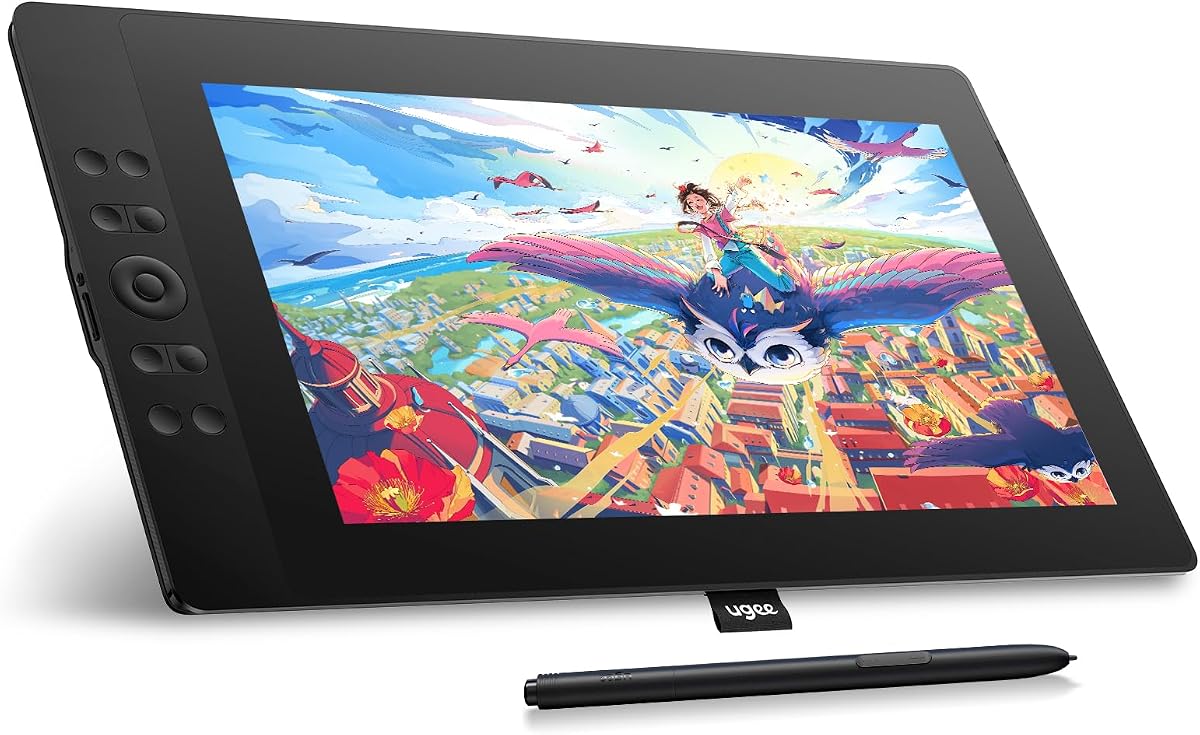
The XPPen Artist 12 Pro Lite is a portable 11.6-inch pen display with a 4.4 rating. It features a fully laminated 1920-by-1080 IPS panel, 8192 pressure levels, 60-degree tilt support, eight shortcut keys, and a distinctive programmable red dial.
We may earn a commission when you buy through this link, at no additional cost to you.
Its 178-degree viewing angle and laminated construction help maintain a clear, consistent image while reducing parallax. The three-in-one cable consolidates the required connections so compatible computers can begin drawing without a collection of separate adapters. The stylus supports natural tilt, allowing shading and directional strokes with less software adjustment.
The red dial is useful for changing brush size, zooming, or navigating layers, and its placement makes it easy to reach while holding the pen. Compatibility extends to Windows 7 and later, macOS 10.10 and later, Chrome OS 88 and later, and Linux. Popular applications listed for use include Photoshop, Illustrator, SAI, CorelDRAW, GIMP, Krita, MediBang, FireAlpaca, and Blender 3D.
This is a persuasive option for teachers, presenters, remote workers, and traveling illustrators. The 11.6-inch body balances portability with a usable drawing area, while the dial and shortcut keys make it particularly effective for explaining ideas directly on screen.
The fully laminated IPS display reduces the visual separation between the glass and artwork. This creates a more immediate drawing feel and improves alignment when small interface elements or precise lines are edited.
Real-time annotation and screen sharing turn the display into a practical presentation surface. The dial, eight shortcut keys, and three-in-one cable streamline setup for classes, meetings, and live demonstrations.
We may earn a commission when you buy through this link, at no additional cost to you.
Choosing an inexpensive drawing tablet with screen requires balancing display quality, pen response, controls, portability, and compatibility. The most useful model is the one that fits your computer setup, preferred software, and working space without sacrificing the features you use most.
Choose a compact model for travel and small workspaces, or a larger screen for detailed projects.
Prioritize 8192 levels for ordinary drawing and consider 16384 with tilt for advanced illustration.
Choose lamination for accuracy and a wider gamut for color-sensitive creative work.
Choose standalone for mobility, or a pen display for professional creative software.
Choose more customizable controls if speed and keyboard avoidance are priorities.
Verify USB-C, HDMI, and USB requirements before ordering to avoid extra adapter costs.
Favor compact weight for travel and larger stable stands for desk-based precision work.
Check both operating-system support and compatibility with your exact creative application.
Start by placing the display on a stable surface and positioning it so your arm and wrist remain relaxed. Connect the required power, data, and video cables before launching your drawing application. Install the manufacturer's driver if the system prompts you, then rotate or configure the display orientation until the cursor and stylus input align naturally.
Open your preferred software, select the new tablet as the input device, and test a few strokes of different pressure levels. Use the shortcut keys or dials to map common actions such as undo, zoom, brush resizing, and layer switching. Begin with a simple calibration or axis test if the application supports one, and adjust pressure or cursor settings until the response feels consistent.
For maintenance, unplug the device before cleaning it and use a soft, lint-free cloth on the display. Avoid abrasive cleaners and excessive liquid, and do not press hard on the screen. Keep replacement nibs available, replace a worn nib before it damages the surface, and store the tablet in a protective sleeve or case when transporting it. Follow the included quick guide for model-specific care and setup instructions.
Most pen displays in this roundup require a laptop or desktop because they use the computer to run the drawing application and output the canvas. The RubensTab T11 Pro is a standalone exception with a built-in battery and preinstalled applications. Check the product listing before purchasing, especially if you plan to work in a specific desktop application.
Yes, 8192 levels are sufficient for most sketching, illustration, concept art, and everyday design work. Models offering 16384 levels can provide finer transitions between very light and heavy strokes, which may benefit experienced artists and detailed rendering. The practical difference also depends on the application, nib, and the user's control technique.
Full lamination bonds the glass and display together, reducing the gap between the pointer and the image. This generally minimizes parallax and improves cursor positioning. The effect is especially noticeable while drawing thin lines, editing small interface elements, or performing detailed retouching.
An 11.6-inch display is easier to carry, less demanding on desk space, and often more affordable. A 15.4-inch or 15.6-inch display offers a larger workspace for detailed artwork, animation, and multitasking. Consider the size of your desk, your display setup, and whether you regularly need to see broad compositions and multiple panels at once.
Battery-free styluses are simpler because there is no charging routine and no risk of the pen losing power during a session. They also tend to feel light and remain compatible without special power management. Rechargeable or active pens can sometimes offer additional features, but the passive pens in this roundup provide consistent pressure and tilt support for less interruption.
Most models in this roundup support popular software including Photoshop, Illustrator, SAI, Krita, Blender, and MediBang, although exact compatibility should be confirmed for the chosen model and operating system. Install the appropriate driver, connect the tablet, and select it from the software's tablet input settings. Older versions of professional software may have different installation requirements.
No. A wider gamut allows the display to represent more of the selected color space, but the result also depends on calibration, software settings, and the accuracy of the source image. For general web and illustration work, an sRGB-oriented display is often sufficient. Color-critical users should consider calibration reports and broader gamut specifications.
Yes, several models are specifically suited to annotation, presentations, handwritten notes, and remote instruction. You can draw directly over documents or screen shares, while shortcut keys provide quick access to erasing and tool changes. Confirm support for your preferred teaching platform and verify that the tablet is recognized as an extended or mirrored display.
The XP-PEN Artist12 is the most balanced overall choice because it combines a compact full HD panel, 8192 pressure levels, a programmable touch bar, six shortcut keys, and broad application support. The VEIKK VK1200 V2 stands out as the best budget pick with its laminated display, two pens, anti-glare glass, and convenient USB-C setup, while the HUION Kamvas 13 (Gen 3) is the premium option for color accuracy and refined pen control.
Your priorities should determine which feature comes first. Choose a larger screen for detailed illustration, a standalone battery for travel, extensive controls for teaching, or strong color specifications for professional design work. In every case, verify operating-system support, required ports, stylus pressure levels, and the dimensions of your available workspace before ordering.
The included ratings and specifications provide a useful starting point, but product listings and prices can change over time. Review the current listing, accessory contents, connection requirements, warranty terms, and any refurbishment details before making a final purchase. That final check helps ensure the inexpensive drawing tablet with screen you choose is genuinely compatible with your intended workflow.