
Lenovo V15 Ryzen 5 7520U
4.7Editor score
16GB DDR5 memory
512GB NVMe storage
Windows 11 Pro included
A laptop for dual boot Windows and Linux should balance dependable hardware with enough storage, memory, and connectivity for two operating systems. The best candidates offer modern processors, capable displays, fast solid-state storage, and flexible ports. Secure Boot, firmware, and driver compatibility also matter because a clean Linux installation can be affected by proprietary components or restrictive firmware settings.
We compared the supplied laptops by examining processor performance, memory, storage capacity and type, display characteristics, port selection, weight, security features, included operating systems, and business-oriented construction. The list includes Linux-ready models, Windows-equipped business notebooks, renewed systems, and a higher-performance workstation-style option. These specifications indicate potential suitability; they do not confirm that every Linux installer will work without adjustment.
Each review explains the strongest reasons to consider that model alongside its limitations for a dual-boot setup. The top recommendations emphasize the balance of portability, storage, performance, and expandability, while other entries cater to buyers seeking particular screen sizes or business features. Product specifications, configurations, ratings, and availability can change, so readers should verify the current listing before purchasing.
4.7Editor score

5.0Editor score
4.3Editor score
As an Amazon Associate we earn from qualifying purchases.
This side-by-side comparison covers ten laptops with different operating-system configurations, storage capacities, screen sizes, and processor levels. The table highlights the most important hardware considerations for installing Windows and Linux side by side.



The Lenovo Thinkbook 13s stands out as the most straightforward starting point for this guide because it ships with Linux Mint rather than requiring the buyer to create a Linux installation from scratch. It carries a 5.0 rating and pairs that Linux-focused configuration with 16GB of DDR4 memory, a 256GB PCIe NVMe solid-state drive, and a 13.3-inch Full HD IPS display. For a buyer seeking a genuinely portable dual-boot notebook, the combination is unusually coherent.
We may earn a commission when you buy through this link, at no additional cost to you.
Its Intel Core i7-8565U is a four-core processor with a 6MB cache and boost speed up to 4.60GHz. Although it belongs to an older processor generation, it should provide capable performance for mainstream productivity, browser-based work, development tools, and two installed operating systems. The 16GB memory is more useful for dual boot than a smaller allocation, while the NVMe drive provides a fast foundation for both Windows and Linux. The anti-glare, non-touch IPS panel also makes the laptop practical for mobile work.
The main compromises are storage capacity and processor age. A 256GB drive can become restrictive once Windows, Linux, applications, updates, and personal files share the same device, so a larger drive or carefully managed partitions would be preferable. The Thinkbook also uses an older platform, and buyers who need current hardware acceleration, demanding compilation workloads, or high-end Linux support for recent graphics hardware may find newer options more appropriate. Secure Boot, Linux driver compatibility, and firmware behavior should still be checked before repartitioning.
This is the strongest recommendation for users who want a compact Linux-first system and already understand that Linux Mint is preinstalled. It weighs 2.95 pounds and measures 16mm thick, making it easier to carry than the larger alternatives in the guide. The two USB-A ports, USB-C port, HDMI, audio jack, wireless connectivity, and webcam cover common needs. It is particularly suitable for developers, students, and general users who value a ready-made Linux environment, though buyers needing abundant storage should plan an upgrade or use external media.
The preinstalled operating system removes much of the setup friction. Linux users can test the hardware immediately, assess Wi-Fi, audio, suspend behavior, and external-display support, and then install Windows into a second partition when satisfied. That directness is why this model earns the Editor's Choice: it addresses the central dual-boot question with the operating system already present rather than asking the buyer to rely entirely on compatibility assumptions.
Linux Mint provides a familiar desktop environment and lets buyers evaluate the notebook's real-world Linux behavior before altering its storage layout. It also simplifies the initial installation because the system already recognizes the hardware as a Linux environment, although proprietary firmware and driver behavior still deserve testing.
At 2.95 pounds and 16mm thick, the aluminum chassis favors mobility without giving up a Full HD IPS display or backlit keyboard. USB-C audio, video, and data support, HDMI, and dual-array microphones make it practical for office, school, and travel use.
We may earn a commission when you buy through this link, at no additional cost to you.
The Lenovo V15 with the Ryzen 5 5500U is the most practical value-oriented selection in this roundup. It combines a 512GB PCIe NVMe M.2 drive, 16GB of high-bandwidth memory, and a six-core, 12-thread AMD processor. The supplied rating is 4.4, and the configuration addresses the most common weakness of dual-boot laptops: too little storage for two operating systems and their respective applications.
We may earn a commission when you buy through this link, at no additional cost to you.
The Ryzen 5 5500U operates at 2.1GHz and can boost up to 4.0GHz, with an 8MB L3 cache. That specification is appropriate for office applications, web browsing, communication, programming, and regular use of Linux development tools. Its six cores and 12 threads also make it more comfortable when Windows and Linux activities are not being used simultaneously. The 15.6-inch Full HD display gives desktop-oriented work more visual room, while the numeric keypad is useful for spreadsheets and data entry.
Connectivity is one of this model's strongest arguments. It includes a USB 3.0 Type-A port, a USB 2.0 Type-A port, USB Type-C, HDMI, RJ45 Ethernet, a combined headphone and microphone connection, a webcam, and Wi-Fi. Wired Ethernet is especially convenient for a permanent dual-boot workstation because a stable connection reduces the importance of Linux driver support for some networking setups. The 512GB drive still may require careful partition planning, but it begins with considerably more room than the 256GB configurations in the guide.
This V15 is best for students, home-office users, and budget-conscious professionals who want Windows 11 Pro already available but also need Linux. The larger display may be less convenient than the Thinkbook 13s in a tightly packed work environment. The listing does not specify whether the 16GB memory is soldered or upgradeable, so buyers should confirm that detail if future expansion matters. Memory type is also not specified in the supplied information.
Overall, it offers the strongest storage-to-cost balance in the list. The combination of a 512GB NVMe drive, 16GB RAM, and a six-core processor is well suited to installing both systems and organizing them into separate partitions. Its Full HD panel, Ethernet port, and Windows 11 Pro capabilities make it versatile, while the lack of a preinstalled Linux image means the buyer will need to create boot media and install the chosen distribution.
A 512GB NVMe drive gives a dual-boot configuration room for Windows, Linux, updates, and applications. Separate partitions can reduce accidental interference, while the drive remains fast enough for quick startup and routine file transfers.
HDMI, USB-A, USB-C, and RJ45 cover displays, peripherals, charging, and wired networking. The Ethernet port is particularly valuable for a stationary setup, while the full-size keyboard and numeric keypad serve extended office sessions.
We may earn a commission when you buy through this link, at no additional cost to you.
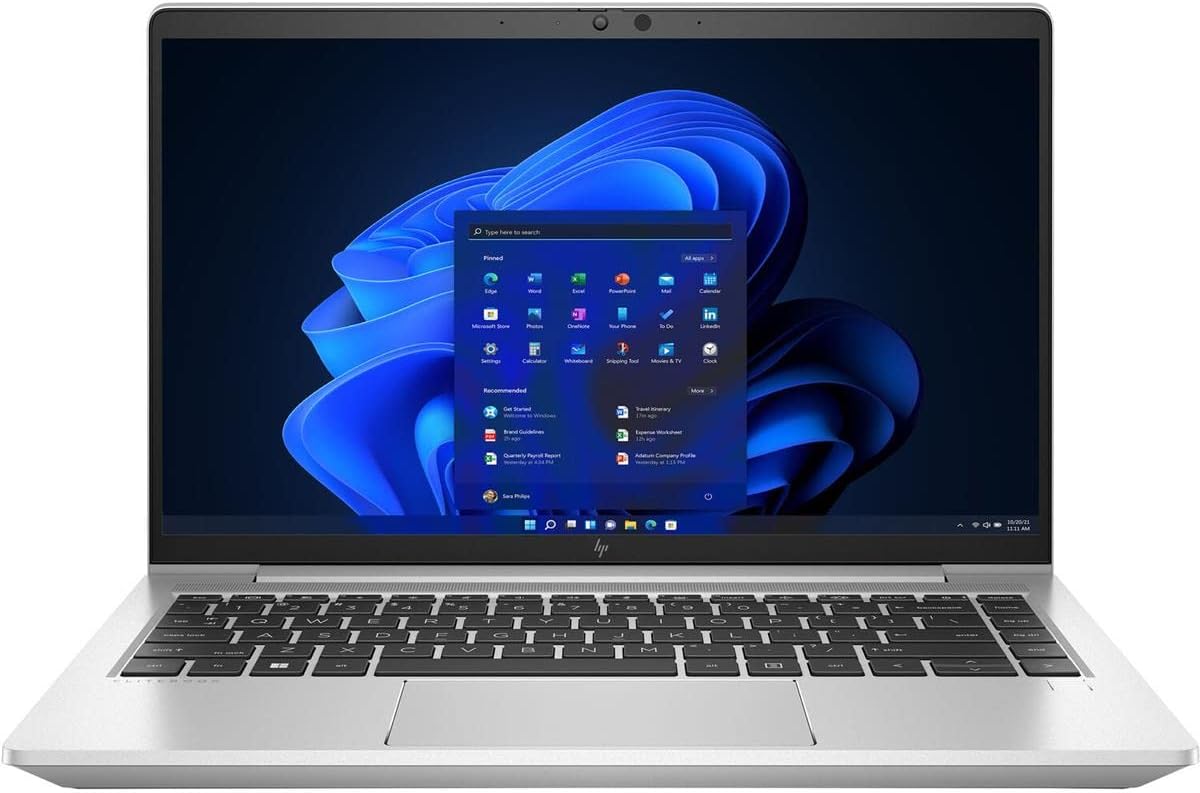
The HP EliteBook 645 G9 is an attractive all-round business laptop for buyers who want a 14-inch display, 16GB of memory, and a 512GB solid-state drive without carrying a large chassis. Its 5.0 rating and Ryzen 7 PRO 5875U specification place it among the strongest-performing choices in the guide. The eight-core processor gives it useful capacity for multitasking and development workloads alongside a second operating system.
We may earn a commission when you buy through this link, at no additional cost to you.
The processor operates at 2GHz and sits within a professional Ryzen 7 family. That platform is well suited to office productivity, virtual machines, container-based development, and compiling software. The supplied information does not detail graphics, ports, battery behavior, or upgradeability, so buyers needing those details should inspect the full listing. For dual boot, the 16GB memory and 512GB storage are the key hardware strengths, providing enough capacity to keep both systems installed without immediately running out of room.
Its 14-inch 1920×1080 screen is a balanced middle ground. It is less expansive than the 15.6-inch models but easier to carry and generally more comfortable for travel than a larger workstation. The listing mentions Windows 10 Pro and its snapping feature, making it suitable for users who want to begin with Windows before adding Linux. A fresh Linux installation would still be needed, and compatibility with the system's particular wireless, graphics, and firmware components should be evaluated before committing to a partition change.
The EliteBook is a sensible recommendation for business users, engineers, and students who prefer a conventional 14-inch form factor. Its 5.0 rating is encouraging, and the combination of eight CPU cores, 16GB of memory, and 512GB of storage should support a comfortable Windows and Linux working arrangement. The limited supplied specifications make a detailed comparison more difficult, however, so potential buyers should confirm port selection and upgrade options directly.
Where this model separates itself from the more explicitly Linux-ready options is through its conventional Windows-based business foundation. Buyers comfortable partitioning an M.2 drive gain a capable, compact platform. Those wanting less setup work should choose a model that already includes Linux, while those who can accept 512GB of storage will find a useful balance between capacity and performance.
The octa-core Ryzen 7 PRO 5875U is well matched to intensive multitasking, virtualized development, and running demanding applications. Its professional processor positioning also suits buyers who value a platform intended for business productivity.
The Full HD 14-inch display provides enough room for documents, browser windows, and terminal work without the footprint of a 15.6-inch notebook. It is a practical middle ground for mobile professionals and students.
We may earn a commission when you buy through this link, at no additional cost to you.
The Lenovo V15 with Ryzen 5 7520U delivers one of the most useful combinations for a dual-boot buyer: 16GB of DDR5 memory, a 512GB PCIe NVMe solid-state drive, and a current-feeling Windows 11 Pro configuration. Its 4.7 rating is the second-highest among the supplied products, and the specification is especially well balanced for installing two full operating systems.
We may earn a commission when you buy through this link, at no additional cost to you.
The Ryzen 5 7520U is a six-core, 12-thread processor with Radeon 610M integrated graphics. It is designed for efficient everyday computing rather than intensive gaming or professional 3D work, but it should handle browser workloads, office applications, code editing, virtual machines, and routine Linux use well. The 15.6-inch Full HD anti-glare display includes TÜV Low Blue Light technology, making it suitable for long study or office sessions.
One of the most valuable features is display connectivity. The laptop supports up to two external 4K displays at 60Hz through HDMI and USB-C without a docking station. That is useful for a permanent dual-boot desk because Linux can use separate monitors while the built-in panel remains available. USB-C 3.2 Gen 1 supports data, power delivery, and DisplayPort 1.2, while two USB-A 3.2 Gen 1 ports, HDMI 1.4b, Ethernet, and an audio jack cover common accessories. Wi-Fi 6 and Bluetooth 5 provide modern wireless connectivity.
The design is also oriented toward business durability. The listing states that the V15 is tested to MIL-SPEC 810H requirements and includes a webcam privacy shutter. A full-size keyboard with numeric keypad supports productivity, although the non-backlit standard keyboard on this configuration may be less convenient in low-light settings. Integrated Radeon graphics are the largest performance limitation, particularly for Linux users whose preferred applications benefit from stronger graphics support.
This model earns the Best Budget distinction because it avoids the compromises seen in more basic systems without moving into the premium category. Windows 11 Pro is included, and a Linux installation can be added through boot media and manual partitioning. The 512GB drive gives both systems room, while 16GB of DDR5 helps when switching between Windows and Linux workloads. It is an excellent recommendation for students, educators, professionals, and small businesses that want capable general-purpose hardware and flexible external-display support.
HDMI and DisplayPort-capable USB-C allow the V15 to drive as many as two external 4K displays at 60Hz. This makes it easy to build a multi-monitor workstation that can run Linux without giving up the built-in screen.
MIL-SPEC 810H testing and a webcam privacy shutter make the V15 attractive for office and educational environments. Windows 11 Pro adds BitLocker encryption, Remote Desktop, and centralized management features for organizations that need them.
We may earn a commission when you buy through this link, at no additional cost to you.
The renewed Lenovo ThinkPad L14 Gen 4 is a distinctive choice for buyers who prioritize connectivity, familiar ThinkPad ergonomics, and business-oriented management over maximum storage. It has a 3.9 rating and combines an AMD Ryzen 5 PRO 7530U processor, 16GB of DDR4 memory, a 256GB PCIe solid-state drive, and a non-touch Full HD IPS display.
We may earn a commission when you buy through this link, at no additional cost to you.
The Ryzen 5 7530U has six cores, 12 threads, a 16MB cache, a base speed of 2.00GHz, and boost capability up to 4.50GHz. That is more than sufficient for productivity applications, software development, and regular use of a Linux distribution. The included TrackPoint is useful for precise cursor control, while the standard keyboard maintains the familiar ThinkPad layout. The renewed designation means the exact cosmetic condition and included accessories should be checked in the listing.
Connectivity is particularly strong. The system has two USB-A 3.2 Gen 1 ports, one USB-C 3.2 Gen 2 port, one USB-C 3.2 Gen 1 port, HDMI 2.1 with support for 4K output at 60Hz, RJ45 Ethernet, a combined audio connection, and a microSD card reader. Wi-Fi 6E and Bluetooth 5.3 provide current wireless standards. This collection of ports is highly useful for a dual-boot desktop arrangement because a Linux installation can rely on Ethernet, removable storage, and multiple display options.
The primary limitation is the 256GB solid-state drive. Windows 11 Professional, Linux, updates, and user data can consume that space faster than buyers anticipate. A second drive or larger internal storage would improve the experience, but the supplied information does not establish whether internal expansion is supported in this configuration. The 3.9 rating is also lower than that of the leading alternatives, which may reflect the effects of renewed status or the variability buyers should expect from refurbished systems.
The ThinkPad L14 is a good fit for a business or technical user who wants a manageable 14-inch notebook, a rich port selection, and TrackPoint control. Its Windows 11 Professional installation and PRO-series processor make it especially appropriate for managed work environments. For dual boot, the main concern is storage, so buyers should partition carefully and plan for external media or additional capacity. It is less convenient than a Linux-preinstalled model for immediate evaluation, but its hardware is a strong foundation.
Dual USB-C, dual USB-A, HDMI 2.1, Ethernet, and a microSD reader create an unusually versatile connection set. Linux users can use the card reader for installer media and the wired port for a stable network connection.
The standard keyboard and TrackPoint provide a familiar alternative to a touchpad-heavy design. Ryzen PRO and Windows 11 Professional also suit business users who value centralized management and security capabilities.
We may earn a commission when you buy through this link, at no additional cost to you.
This Lenovo business laptop is one of the easiest choices to evaluate because Linux Mint Cinnamon 64-bit is already installed. It has a 4.6 rating, a recent Intel Core i5-1335U processor, 16GB of DDR4 memory, and a 256GB solid-state drive. Unlike a conventional Windows notebook that must be tested with an unknown Linux installer, it gives buyers an immediate way to evaluate the hardware under Linux.
We may earn a commission when you buy through this link, at no additional cost to you.
The i5-1335U uses a 12MB cache, provides 12 threads, and boosts up to 4.6GHz. This is a capable modern processor for general productivity, web applications, development, and dual-operating-system workflows. The 15.6-inch Full HD non-touch anti-glare display is appropriate for office and school use, and the full keyboard includes a number pad. Stereo speakers support media and calls, while a 720p webcam with a privacy shutter helps protect the user's image during video meetings.
Its ports include two USB 3.0 ports, a USB 3.1 Type-C port, a combined headphone and microphone connection, a four-in-one card reader, HDMI, and a Kensington Mini-Lock security slot. Intel dual-band wireless and Bluetooth 4.2 are specified, which means the buyer should confirm Linux driver support for the exact wireless adapter. The stated fast-charging feature is convenient, but the supplied information does not identify the charger wattage or battery capacity.
Storage is the central concern. A 256GB drive can hold Linux Mint and Windows, but users should leave substantial room for updates, applications, virtual environments, and personal files. The memory specification is also abbreviated as 16GB DDR4 without stating speed or upgradeability. Those limitations matter for anyone planning demanding development workloads, but they do not undermine the system's usefulness as a conventional productivity and learning machine.
This is a strong recommendation for a Linux-first buyer who wants to begin working immediately and install Windows later. The preinstalled Cinnamon desktop provides a clear entry point, and the processor and memory are sufficient for daily tasks. It is also appealing to students and professionals who want a full-size keyboard, numeric keypad, and large display. Those needing more storage should plan an upgrade, while those needing modern Wi-Fi capabilities should verify the adapter before purchasing.
The preloaded Linux Mint environment saves the buyer from creating installation media and resolving an initial boot setup. It also allows a practical compatibility check of Wi-Fi, audio, input devices, and power behavior before adding Windows.
A 15.6-inch anti-glare display, stereo speakers, webcam privacy shutter, and full numeric keypad suit office, classroom, and remote-work use. Fast charging and USB-C connectivity simplify everyday power management.
We may earn a commission when you buy through this link, at no additional cost to you.
The renewed Dell Latitude 5420 offers the classic ingredients of a business-oriented dual-boot laptop: a 14-inch Full HD display, 16GB of DDR4 memory, a 256GB solid-state drive, and Windows 11 Pro. Its 3.8 rating is the lowest numerical score among the reviewed models, so buyers should approach it as a value-oriented renewed purchase rather than the highest-confidence recommendation.
We may earn a commission when you buy through this link, at no additional cost to you.
The Intel Core i5-1145G7 is a quad-core processor operating at 2.00GHz. It provides adequate performance for document editing, browsing, communication, and lightweight development. Because 16GB of memory is included, the machine can comfortably handle both operating systems and several applications when resources are managed carefully. The solid-state drive supports faster startup and file access than a conventional hard drive, although 256GB is again the main limitation for a dual-boot arrangement.
The camera, HDMI, and Windows 11 Pro are specifically noted, but the supplied product data does not detail the full port selection, wireless standard, battery, weight, or upgradeability. Those omissions make verification essential. Linux users should particularly check the exact Wi-Fi adapter, touchpad behavior, audio hardware, and any firmware requirements associated with the renewed system. A fresh installation can overwrite an existing system, so the buyer should confirm the drive's condition and whether the current operating system is included as intended.
The renewed designation may explain the rating and also creates an opportunity for a lower-cost purchase. It can suit an organization that knows how to restore software, check battery and cosmetic condition, and handle its own initial configuration. For a buyer who wants a simple turnkey experience, a system with Linux preinstalled would be preferable. For a technically confident user, the Latitude 5420 may offer a familiar business platform at a more accessible cost.
This model is best for office and study users who value the 14-inch format, 16GB memory, and a solid-state drive. It falls short of the top recommendations because of its lower rating, renewed condition, limited details, and modest storage. If its current configuration and warranty terms are satisfactory, it remains a reasonable way to obtain a business notebook for a Windows and Linux arrangement. Verify the exact hardware and installation terms before making the final decision.
The Latitude 5420's 14-inch Full HD display is suitable for productivity work and offers a more manageable footprint than a 15.6-inch laptop. Its business focus is reinforced by the inclusion of Windows 11 Pro.
A renewed system can be worthwhile for informed buyers, but condition, warranty coverage, battery wear, and included accessories may vary. Confirm the seller's return terms and inspect the installed drive and hardware before making permanent partition changes.
We may earn a commission when you buy through this link, at no additional cost to you.
The ASUS Vivobook 14 is included as a lightweight entry-level option, but its 64GB eMMC drive makes it a difficult dual-boot recommendation. The system ships with Windows 11, has 4GB of DDR4 memory, and uses an Intel Celeron N4500 processor. No numerical customer rating is supplied, so there is insufficient rating evidence to place it above the more highly rated models.
We may earn a commission when you buy through this link, at no additional cost to you.
The N4500 can boost up to 2.8GHz with Intel UHD graphics. It is designed for light productivity, browsing, schoolwork, and communication rather than software development, virtual machines, or demanding multitasking. With only 4GB of RAM, running Linux and Windows in separate partitions is possible, but the system will feel constrained in either environment. A Linux desktop also consumes more disk space than the already minimal Windows installation, making the 64GB eMMC the decisive problem.
The display is more encouraging. Its 14-inch Full HD LED panel is crisp for documents, lessons, browsing, and streaming. The laptop weighs 2.87 pounds and is 0.71 inches thick, making it highly portable. USB-C, USB-A, HDMI, a 3.5mm audio jack, Wi-Fi, Bluetooth, and a 720p camera cover basic connectivity. The listing also claims up to 10 hours of battery life, though actual results depend on settings, workload, screen brightness, and wireless conditions.
A possible workaround would be to run Linux from removable USB storage while keeping Windows on the internal eMMC. Even then, only 4GB of system memory and a modest processor make the experience best suited to lightweight tasks. The 1TB cloud storage included with the configuration may help with files, but it does not replace the local capacity required for an operating system and normal application data. Linux distributions can be installed on an external drive, provided the drive's interface and boot behavior are compatible.
The Vivobook earns inclusion for portability rather than dual-boot capability. It could be a sensible study or travel computer for a user who wants a Linux live environment or a lightweight secondary system, but it is not recommended for a permanent Windows and Linux installation. The top-ranked Thinkbook and the storage-focused V15 models provide much more suitable memory and disk capacity.
At 2.87 pounds and 0.71 inches thick, the Vivobook is easy to carry. Its slim construction makes it attractive for travel and study, but those advantages come with very limited memory and local storage.
Because 64GB is too constrained for a conventional permanent dual boot, a live Linux USB drive is a more realistic approach. Buyers should still expect light workloads with the Celeron processor and 4GB of memory.
We may earn a commission when you buy through this link, at no additional cost to you.
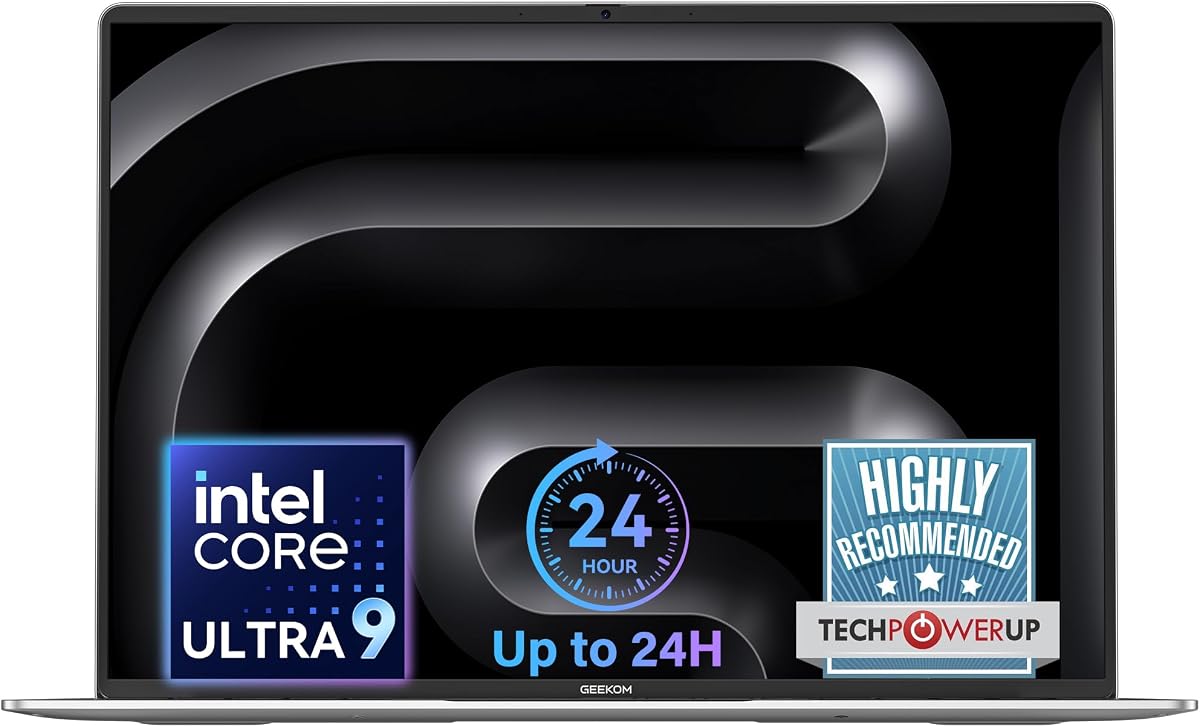
The GEEKOM GeekBook M16 is the premium performance choice in this guide. It combines an Intel Core Ultra 9 185H processor, upgraded Intel Arc graphics, 16GB of LPDDR5 6400MHz memory, and a 512GB PCIe Gen4 solid-state drive. Its 4.3 rating, 16-inch 16:10 IPS display, extensive connectivity, and sustained-performance design make it suitable for demanding development, content creation, and professional multitasking.
We may earn a commission when you buy through this link, at no additional cost to you.
The Core Ultra 9 185H supports GeekBook's dynamic tuning technology, allowing the laptop to sustain up to 55W on battery power. Three performance modes—Silent 15W, Balanced 40W, and Performance 55W—let users balance speed, heat, and noise. A dual-fan IceBlade 3.0 cooling system is designed to support those workloads. This level of performance is useful for compiling code, running containers, editing video, rendering, and managing several complex applications in one operating system.
Connectivity is a major strength. The system includes a 40Gbps USB4 port with power delivery and DisplayPort 2.1, HDMI 2.0, and multiple USB ports, with support for up to three external displays. Every unit includes a five-in-one dock with two USB-A ports, one USB-C, HDMI, and LAN. Such support is ideal for a dual-boot desktop: Linux can connect directly to several screens and wired networking while preserving access to the internal display.
The 16-inch 16:10 IPS panel offers more vertical workspace than a standard 16:9 display, and its 90% screen-to-body ratio supports productive multitasking. A fingerprint reader, DTS:X Ultra dual speakers, a 180-degree hinge, numeric keyboard, and large haptic touchpad round out the feature set. The 99.9Wh battery is claimed to deliver up to 24 hours depending on use, and the included 100W PD charger is described as smaller than a standard laptop adapter.
This is the best selection for buyers whose work can justify a more powerful and potentially larger premium notebook. Linux compatibility of the exact Intel wireless, fingerprint, and graphics hardware should be checked, but the presence of a Linux-capable processor, USB4, and wired networking creates a strong platform. The 16GB memory and 512GB drive are sufficient to begin a dual-boot setup, although serious development work may benefit from more memory. For most buyers, however, it is the clear high-performance option.
The ability to maintain up to 55W on battery power is unusual and useful for mobile creators and developers. Performance modes make it possible to reduce power consumption for travel while retaining stronger output at a desk.
USB4, DisplayPort 2.1, HDMI 2.0, and support for up to three external displays create a flexible workspace. The included five-in-one dock adds wired networking and legacy USB-A access for a permanent desk setup.
We may earn a commission when you buy through this link, at no additional cost to you.
The Dell Pro 15.6-inch Core 3 100U is a well-rounded everyday laptop with a 4.5 rating, 16GB of DDR5 memory, a 256GB NVMe solid-state drive, and a distinctive 120Hz Full HD IPS display. It is not explicitly marketed as Linux-ready, but its general-purpose hardware makes it a credible dual-boot machine for home, school, and light professional use.
We may earn a commission when you buy through this link, at no additional cost to you.
The Core 3 100U has six cores, reaches up to 4.7GHz, and uses integrated Intel UHD graphics. It should handle browsing, office applications, communication, media, and moderate multitasking. The 120Hz panel provides fluid scrolling and a comfortable presentation for general productivity, although Linux users may need to verify the exact graphics driver and whether the full advertised refresh rate is available in their preferred desktop environment.
Connectivity is solid. The system includes Realtek Wi-Fi 6 with 2×2 MU-MIMO, Bluetooth, USB 3.2 Gen 1 Type-A, USB 2.0 Type-A, USB 3.2 Gen 1 Type-C, HDMI 1.4, a universal audio jack, and an SD card slot. That card reader is especially convenient for moving files or booting a Linux installation. The 4.19-pound carbon-black plastic chassis is portable enough for daily commuting, and the 720p camera with an integrated microphone supports calls.
Its limitations are straightforward. A 256GB drive is not generous for Windows, Linux, applications, and updates, so external storage or careful partition management will be essential. The non-backlit keyboard is less comfortable in dim environments, and the 250-nit display is adequate rather than exceptional. Because the supplied information does not detail Linux support for the exact Realtek adapter, it should be checked before installation.
The Dell Pro is a good recommendation for a buyer who wants a familiar large-screen Windows laptop and plans to add Linux for programming, privacy, or development work. Its 16GB of DDR5 memory is a meaningful advantage for a dual-boot system, while the NVMe drive and current processor should keep both installations responsive. Expand the storage if possible, and verify hardware compatibility before making permanent changes to the partitions.
The 15.6-inch IPS panel offers fluid motion and a conventional 16:9 resolution. It is well suited to browsing, presentations, and general productivity in a large workspace.
Wi-Fi 6, Bluetooth, multiple USB ports, HDMI, and an SD card reader cover routine accessories. The card reader can also serve as a convenient way to transfer a Linux installation image.
We may earn a commission when you buy through this link, at no additional cost to you.
A dual-boot laptop should provide enough fast storage, capable processors, compatible hardware, and practical connectivity for both systems. The most important considerations are the installed operating system, available disk space, firmware behavior, and the demands placed on the machine.
A dual-boot system needs separate space for the Windows installation, one or more Linux distributions, recovery or swap partitions, application data, and updates. A 256GB drive can work, but it leaves less breathing room than a 512GB drive once both systems are installed. NVMe storage is strongly preferable for boot speed and application responsiveness, while eMMC is much more constrained. Buyers should avoid filling either partition completely and should keep a recovery method available before resizing a drive.
The processor must handle whichever operating system is active, plus development tools, virtual machines, browsers, office applications, and occasional simultaneous background tasks. Modern Core i5, Core Ultra, Ryzen 5, Ryzen 7, and Ryzen PRO processors offer a sensible baseline for productivity and development. Users focused on compiling, rendering, large software projects, or virtualized environments should prioritize more cores, a larger cache, and sustained power rather than relying on a brief turbo-clock figure.
Memory does not need to be divided permanently between Windows and Linux because only one operating system runs at a time. However, 16GB gives each installation enough room for browsers, compilers, containers, virtual machines, and background services. An 8GB configuration can work for light duties, while 4GB is restrictive. Buyers should also verify whether memory is soldered or upgradeable, since future expansion can be useful when running memory-intensive development tools.
A preinstalled Linux system provides evidence that the manufacturer intended the laptop to work with Linux, although it does not guarantee flawless support for every component. Wi-Fi, Bluetooth, audio, webcam, fingerprint readers, graphics, suspend behavior, and external monitors deserve testing. Modern UEFI systems may use Secure Boot, which some Linux distributions can handle through signed boot managers, while others may require a firmware setting change. Always back up data and confirm the recovery procedure before altering boot settings.
Screen size affects how comfortably the two systems are used. A 13.3-inch model is easy to carry and works well with Linux in a terminal, browser, or compact desktop. A 14-inch display offers a better balance for office work, while a 15.6-inch or 16-inch panel is useful for detailed documents and multi-window workflows. Weight, thickness, battery expectations, and keyboard comfort are equally important because dual boot can encourage using the machine in both mobile and stationary roles.
USB-A remains important for peripherals, while USB-C may provide charging, data transfer, and display output. HDMI makes a dual-screen setup straightforward, and RJ45 Ethernet offers a stable wired connection that can reduce dependence on Wi-Fi driver support. Buyers who want one monitor for Windows and another for Linux should look for two independently driven display outputs and verify the laptop's supported resolution and refresh-rate combinations.
Business laptops may include fingerprint readers, TPM-backed security, camera privacy shutters, encryption, and Windows management features. These services can also be valuable in Linux, although the extent of support depends on the distribution, desktop environment, and installed utilities. Remote management, BitLocker compatibility, and hardware-backed encryption may matter more to organizations than raw gaming performance. A discrete numeric keypad and rugged construction can also make a notebook more useful for daily enterprise work.
Renewed laptops can provide strong hardware at a more accessible cost, but their condition, battery health, warranty, included accessories, and installed configuration may vary. For a dual-boot conversion, the drive's remaining life and the cleanliness of the existing installation deserve particular attention. The current listing should be checked for the exact processor, memory, storage type, operating system, ports, and included accessories. Configuration details can change within a product family or seller catalog.
Begin by backing up important files and creating a tested recovery drive before changing partitions or firmware settings. Confirm that the installed Linux or Windows version boots correctly, and use the Linux environment to test Wi-Fi, Bluetooth, sound, camera, keyboard, trackpad, display output, and sleep or suspend. If the machine includes fingerprint hardware or specialized media features, test those separately because their support may differ from the rest of the system.
Plan the disk layout before installing the second operating system. Decide whether you want separate root, home, swap, or application partitions, and leave sufficient unallocated space. A USB installer is generally easier to recover from than changes made only to the internal drive, and external media can also serve as a live Linux environment. Record any firmware changes, keep recovery keys and account credentials outside the laptop, and avoid modifying partitions until the first operating system is working perfectly.
Maintain both installations with regular updates, sensible storage levels, and current backup practices. Keep the internal drive's firmware and operating systems current, use the supplied or a compatible charger, and avoid leaving the battery permanently depleted. Clean vents gently, protect the display with appropriate care, and use an external enclosure for a secondary drive. If partitioning feels complicated or warranty terms are unclear, consult the manufacturer's documentation or a qualified local technician before proceeding.
A 256GB drive can work for light use, but 512GB is a more practical minimum for most buyers. Windows, Linux, updates, applications, and personal files can quickly consume a smaller drive. Leave additional room for recovery, swap, or separate data partitions. If the laptop supports a second drive, that can provide a convenient way to add capacity without replacing the primary drive.
A Linux-preinstalled model is often easier to evaluate because the buyer can immediately test Wi-Fi, audio, graphics, input devices, and power behavior. It does not guarantee complete Linux compatibility, but it provides a clearer starting point. A Windows-first machine may be preferable when the buyer already knows Linux and needs particular business software or management features.
Most modern Windows laptops can boot another operating system, but compatibility depends on the firmware, storage mode, Secure Boot settings, drivers, and available disk space. Some Windows and Linux installations can coexist easily, while a pre-partitioned disk, BitLocker encryption, or unusual boot configuration may require extra steps. Back up everything and understand the recovery process before changing partitions.
Because only one operating system is active at a time, RAM is not divided between Windows and Linux. Sixteen gigabytes is a comfortable amount for modern browsing, office applications, programming, and development tools. Eight gigabytes can handle lighter use, while four gigabytes is likely to feel constrained. Verify whether the memory can be upgraded if a larger configuration is unavailable.
It depends on the Linux distribution and installation method. Some current distributions can work with Secure Boot enabled, sometimes through a signed boot manager, while other setups require it to be disabled in the UEFI firmware. Do not disable it casually on a managed business computer without following organizational policy. The distribution's current documentation and the laptop manufacturer's instructions should be consulted first.
A live USB can run Linux without permanently changing the internal drive, making it useful on a 64GB or 256GB system. It still needs a bootable USB device, and the laptop's processor, memory, and graphics performance will affect the experience. A live environment is also useful for testing hardware compatibility before committing to a full installation.
They can be, because many business laptops use standard processors, SSDs, and peripheral chips with broad Linux support. The main concerns are the exact wireless adapter, graphics driver, Secure Boot behavior, battery condition, and drive health. Check the specific configuration and return policy rather than assuming every unit in a renewed listing is identical.
The second installed operating system does not determine the features available in the first. Windows 11 Pro adds business management, security, and remote-access capabilities, while Home is better suited to typical household use. Linux can provide the security and development functions many users want without changing the licensing choice for Windows.
The Lenovo Thinkbook 13s is the clearest overall choice because Linux Mint is already installed, the chassis is compact, and 16GB of memory provides a comfortable starting point. The Lenovo V15 with Ryzen 5 7520U offers the best value balance through modern DDR5 memory, a 512GB NVMe drive, strong connectivity, and multi-display support. For buyers seeking more processing power and a premium workstation experience, the GEEKOM GeekBook M16 is the most capable option in the list.
Prioritize storage first, followed by memory and hardware compatibility. A 512GB NVMe drive is preferable for permanent dual boot, 16GB of RAM supports modern workflows, and a preinstalled Linux system makes initial testing easier. Check the exact wireless, audio, graphics, fingerprint, and firmware support rather than assuming compatibility from the processor alone. Ports, display output, and Ethernet can matter just as much when the laptop serves as a desk-based dual-system workstation.
Finally, verify the current product configuration, rating, operating system, warranty, and availability before purchasing. Hardware listings can change, and renewed systems particularly require close attention to condition and included components. Prices also change frequently, so compare the current listing with the other models in this guide and select the laptop that best fits your storage, software, portability, and Linux-compatibility requirements.