
HP 17 Touchscreen Business Laptop
4.8Editor score
64GB high-bandwidth DDR4
1TB PCIe NVMe storage
Intel Core i7 processor
Windows 11 Pro
Fingerprint reader
A laptop for a visually impaired user should do more than provide a large display. Useful screen magnification, reliable text-to-speech, accessible navigation, a comfortable keyboard, useful audio hardware, and enough processing power for assistive software can make a much larger difference in daily usability. The best models balance these needs with portability, display quality, and dependable everyday performance.
We compared all ten listed products using their supplied specifications, including screen dimensions, resolution, brightness, touch support, processors, memory, storage, keyboards, connectivity, audio, cameras, and operating systems. This guide covers conventional HP laptops, touchscreen business systems, a compact 16-inch option, and a non-computer magnifier accessory that can complement a compatible device.
Each review explains who the configuration is best suited to and where its compromises may matter. Screen-reader and magnification support depend on the installed Windows version and the user's preferred accessibility tools, while real-world comfort also varies with eyesight, lighting, and viewing distance. Prices and configuration details can change, so confirm the current listing before purchasing.
4.8Editor score
4.7Editor score

4.5Editor score
As an Amazon Associate we earn from qualifying purchases.
The table below compares all ten options by display, performance, memory, and practical accessibility features. It highlights the major hardware trade-offs without treating any laptop as a substitute for individualized assistive-technology assessment.


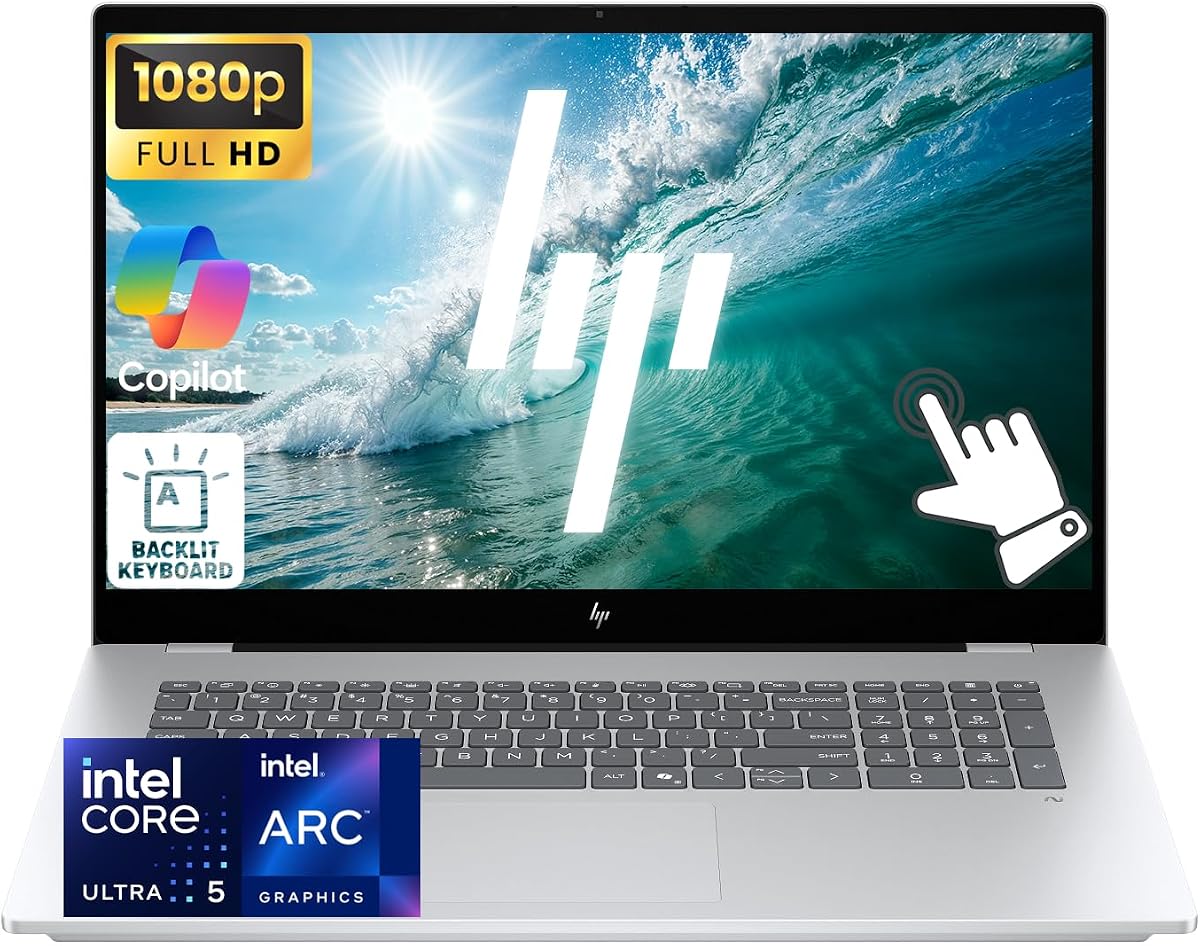
The HP OmniBook 7 ranks first because it combines one of the strongest visual specifications in the group with a modern processor and generous everyday hardware. It carries a 4.7 rating and features a 17.3-inch FHD IPS touchscreen at 400 nits and 100% sRGB coverage. That combination is particularly useful for users who benefit from readable text, distinct colors, and a large viewing area without settling for a low-resolution panel.
We may earn a commission when you buy through this link, at no additional cost to you.
Its Intel Core Ultra 5 226V processor has eight cores and eight threads with boost speeds up to 4.5 GHz. Paired with 16GB of LPDDR5x memory, it should handle web browsing, office applications, remote meetings, document work, and screen-reader or magnification routines with ample headroom. A 1TB SSD offers fast storage and enough room for common application and document libraries.
The visual experience extends beyond raw resolution. Edge-to-edge glass, narrow bezels, IPS technology, and 100% color coverage can make text and interface elements more distinct. Windows 11 Pro provides a solid foundation for Narrator, Magnifier, high-contrast themes, and keyboard navigation. Touch input also offers an alternative for users who find precise pointer movement difficult.
This is the most balanced recommendation for a user who wants a large, bright, color-accurate display alongside capable everyday performance. Its 17.3-inch chassis is substantial, and the supplied 1TB storage may be less generous than configurations with 2.5TB, but the visual experience and overall feature set justify its place at the top of the guide.
The 1920-by-1080 resolution provides more usable workspace than an HD+ screen, while the 400-nit brightness offers a useful advantage in bright rooms or with indirect lighting. The 100% sRGB specification also helps preserve contrast between interface colors, which can make high-contrast mode easier to distinguish.
Windows 11 Pro supports the built-in accessibility features that visually impaired users commonly configure, including Narrator, Magnifier, live captions, focus controls, and high-contrast themes. The backlit keyboard and numeric keypad provide additional ways to work comfortably in dim environments.
We may earn a commission when you buy through this link, at no additional cost to you.
This HP 17.3-inch touchscreen model pairs a high-end processor with unusually generous memory and storage. Its 5.0 rating is the highest numerical rating in the supplied data, and the configuration is aimed at users who need room to run many applications, accessibility utilities, communication tools, and demanding work programs without watching resources closely.
We may earn a commission when you buy through this link, at no additional cost to you.
The Intel Core Ultra 7 255U includes 12 cores and 14 threads with speeds up to 5.2 GHz. Memory comes to 40GB of DDR5, while storage totals 2.5TB through a 2TB SSD and a 512GB SageNova docking station. This is particularly compelling for students, professionals, and creators who keep large document collections or work across several productivity applications.
Accessibility is helped by the 17.3-inch touchscreen, full-size backlit keyboard, numeric keypad, and Windows 11 Home. A fingerprint reader provides an alternative login method. The included docking station can simplify the connection of external monitors, storage, and peripherals, although users with limited low-vision vision should verify compatibility with their preferred adaptive equipment.
The principal weakness is the 1600-by-900 HD+ panel rather than the internals. It offers less vertical detail than the FHD OmniBook 7 and may require more magnification for small interface text. Even so, the exceptional rating, processing power, memory, and storage make this the premium pick for buyers who prioritize capacity over the very finest display specification.
The 40GB of DDR5 memory offers comfortable headroom for screen magnification, browser sessions, video calls, office software, and background services. This is particularly useful when several accessibility tools and productivity applications remain open together.
The Ultra 7 processor and large storage total support intensive workflows, while the docking station provides a convenient connection point for peripherals. Buyers should still verify the dock's port layout against the accessories they already use.
We may earn a commission when you buy through this link, at no additional cost to you.
The HP 17.3-inch Business Laptop is a conventional large-screen option for users who need a productive Windows machine without a touchscreen. Its 4.1 rating is the lowest numeric score among the rated laptops, but its 10-core Intel Core i5-1334U, 16GB of memory, backlit keyboard, and fingerprint reader create a solid foundation for office work and accessible software.
We may earn a commission when you buy through this link, at no additional cost to you.
The processor can reach 4.6 GHz and is intended for multitasking, productivity applications, streaming, and file transfers. Windows 11 provides access to Narrator, Magnifier, voice control, and display scaling. The full-size backlit keyboard improves visibility in dim conditions, while the fingerprint reader can reduce the need to enter a complex password.
The 17.3-inch HD panel has a 1600-by-900 resolution and 250-nit brightness. That specification is adequate for standard desktop use but is less impressive for users who need high contrast, precise color work, or a very bright panel. The supplied 256GB SSD also requires attention when storing large accessibility libraries or extensive media files.
At 4.6 pounds and 0.81 inches thick, this model is more portable than many large HP systems. It is best for a user who values a familiar, conventional laptop, dependable productivity hardware, and a manageable price without requiring touch input. Users who strongly prefer direct screen interaction should choose a touchscreen alternative.
A large screen, backlit keyboard, and lightweight 4.6-pound chassis support extended document work and travel. The Windows magnification and Narrator tools remain readily available, while physical keyboard navigation can be more familiar than touch-only interaction.
The 10-core processor and 16GB of RAM are suitable for office suites, many browser tabs, communication apps, and ordinary media consumption. The main constraint is the 256GB storage, which should be checked against the user's file and software requirements.
We may earn a commission when you buy through this link, at no additional cost to you.
This HP 17 Touchscreen Business Laptop stands out for combining a 4.8 rating with 64GB of DDR4 memory, a 10-core Intel Core i7 processor, and a 1TB PCIe NVMe SSD. It is the most memory-intensive conventional laptop in the list and is well suited to users who keep many browser tabs, assistive applications, communication tools, and demanding programs active at once.
We may earn a commission when you buy through this link, at no additional cost to you.
The processor reaches up to 5.0 GHz and is paired with Intel Iris Xe Graphics. The 17.3-inch BrightView touchscreen operates at 1600 by 900 and offers direct interaction alongside the full-size backlit keyboard, ten-key numeric keypad, and fingerprint reader. Those alternatives matter because some users can work more easily through touch, while others prefer tactile keys or a secure fingerprint login.
Windows 11 Pro provides the business-oriented foundation, and the supplied specifications support demanding tasks such as software development, video editing, and complex multitasking. The NVMe storage should provide noticeably quicker file access than a traditional hard drive, while the ample RAM reduces the chance that heavy workloads will crowd out assistive utilities.
The compromise is the HD+ display rather than the hardware. It does not provide the finer pixel detail of the FHD OmniBook models, and the 17.3-inch body is not particularly portable. Even so, this is the strongest choice for a buyer whose priority is performance, memory, storage, touch access, and a professional operating system rather than maximum display resolution.
The 64GB RAM configuration gives users an unusually generous amount of memory for accessibility software, many open applications, and large work projects. It is particularly attractive for users who cannot afford to close and reopen tools throughout the day.
The touchscreen, backlit keyboard, numeric keypad, and fingerprint reader provide several complementary input methods. Users can configure Windows magnification, use keyboard navigation, interact directly with enlarged controls, or select a more convenient authentication route.
We may earn a commission when you buy through this link, at no additional cost to you.
The HP OmniBook 3 16-inch model offers a sharp 1920-by-1200 IPS touchscreen, and that high-resolution 2K panel makes it a strong value-focused option for visually impaired users who spend considerable time reading or enlarging text. Its 4.5 rating reflects a generally favorable balance of features, portability, and everyday capability.
We may earn a commission when you buy through this link, at no additional cost to you.
The AMD Ryzen 3 30 processor is intended for routine work, casual gaming, streaming, photo editing, and multitasking. Memory is the main limitation at 8GB of LPDDR5, which can become restrictive when numerous browser tabs, video calls, and screen-magnification functions are used together. The 256GB NVMe SSD provides fast storage, though its capacity is modest.
Windows 11 Home supplies Narrator, Magnifier, voice access, high-contrast settings, and other built-in accessibility features. The anti-blue-light glass may be useful during long sessions, although it should not be treated as a substitute for suitable lighting, regular breaks, or professional advice about eye health.
This is a good choice for someone who values a high-resolution 16-inch touchscreen and portable design more than heavy multitasking capacity. It is less suitable as a dedicated workstation for intensive editing or many simultaneous enterprise applications. Buyers should consider whether 8GB of memory meets their needs or whether a higher-memory configuration would serve them better.
The 2K panel provides more pixel detail than the HD and HD+ options, producing more defined text and controls when Windows scaling is applied. A 16-inch footprint also makes the system easier to carry than most of the 17.3-inch alternatives.
Eight gigabytes can support ordinary browsing and office tasks, but heavy users may encounter less headroom when running enlarged interfaces and multiple applications. Memory needs should be estimated from the user's normal workflow rather than from the number of programs opened at a single moment.
We may earn a commission when you buy through this link, at no additional cost to you.
This HP 17.3-inch touchscreen model is designed around a large anti-glare display, a backlit keyboard, and the practical needs of students and everyday productivity users. Its 4.4 rating is solid, while the anti-glare treatment may help reduce reflections for users who position a laptop near windows or bright indoor lighting.
We may earn a commission when you buy through this link, at no additional cost to you.
The supplied information describes an Intel N100 quad-core processor, up to 16GB of DDR4 memory, a 512GB SSD, and an additional 128GB of UFS storage. The title identifies 8GB of RAM, so buyers should verify the actual installed configuration on the listing. The N100 is best suited to web use, office applications, learning, communication, and lightweight multitasking.
The 1600-by-900 display provides 250 nits of brightness and a 16:9 aspect ratio. Touch navigation offers an alternative to pointing, while the full-size backlit keyboard and numeric keypad support low-light typing. A fingerprint reader adds a simple authentication option, and Windows 11 Home includes the standard accessibility suite.
This laptop is most appropriate for users who need a generous touchscreen and anti-glare surface but do not need demanding gaming, intensive editing, or heavy professional software. It is also a thoughtful secondary computer option for web-based learning and communication. The processor and potentially modest memory are the main limitations.
The anti-glare coating can make a large screen more comfortable in rooms with strong reflections. Users should still adjust brightness and screen positioning, and take regular breaks, because glare reduction alone does not determine visual comfort.
The listing title states 8GB of RAM, while the feature description refers to up to 16GB of DDR4 memory. Confirming the installed amount is important because memory can determine whether many applications and accessibility tools remain comfortable to use simultaneously.
We may earn a commission when you buy through this link, at no additional cost to you.
The HP OmniBook 3 17.3-inch combines a 5.0 rating with an FHD anti-glare touchscreen, 16GB of DDR5 memory, and a 1TB PCIe SSD. It is one of the strongest all-around combinations in the guide because it provides more display detail than the HD+ models without moving into the extreme memory and storage territory of the premium configurations.
We may earn a commission when you buy through this link, at no additional cost to you.
The AMD Ryzen 5 130 has six cores with speeds up to 4.55 GHz and works with Radeon 660M graphics. That level of performance is suitable for office work, remote collaboration, programming, multiple browser tabs, light photo editing, and content creation. Windows 11 Home 64-bit and Copilot provide a modern software foundation, while Windows accessibility tools remain available.
Its 1920-by-1080 screen offers 300 nits of brightness and an anti-glare coating. Narrow bezels maximize the display area, and the touchscreen allows direct interaction with enlarged controls. Backlit keys help in dim rooms, while the camera, dual-array microphones, and Wi-Fi 6 support everyday video communication.
The system is especially relevant for users who work for long periods and want a clear, roomy screen without the highest possible internal specifications. It can support three external monitors through HDMI 2.1 and USB Type-C, which is valuable for users who already use enlarged displays. Its large chassis may be less convenient for frequent travel.
The 1920-by-1080 panel offers enough detail for crisp desktop interfaces, while 300 nits provides a practical brightness level. Its anti-glare finish is especially useful in rooms where a glossy display would reflect windows or lamps.
Support for up to three external monitors at resolutions up to 4K at 60Hz gives users a strong option for dedicated magnification setups. Users should confirm that their chosen cables, adapters, and adaptive hardware support the laptop's available video connections.
We may earn a commission when you buy through this link, at no additional cost to you.
Unlike the other products in this guide, the Essential Laptop for the Visually Impaired is not a computer. It is a desktop-style screen magnifier with a wooden bracket and high-definition optical lens designed for laptops and mobile phones. It has no supplied numeric rating, so buyers should judge it as a supplemental accessibility accessory rather than as a complete computing solution.
We may earn a commission when you buy through this link, at no additional cost to you.
The adjustable design allows the screen to be positioned at different viewing angles, which can reduce the need to lean over a laptop placed on a desk. Its optical magnification enlarges the displayed image, while the supplied description highlights anti-blue-light construction and a viewing distance intended to make phones and laptops easier to examine.
This accessory may be useful for a user who already owns a capable computer, needs occasional physical enlargement, or wants a second viewing arrangement for reading and video. It may also be less disruptive than changing an entire laptop setup. Because it works by magnifying what is already on the display, it cannot provide native screen-reader output or independently enlarge text beyond the source display's available detail.
The device is best for users seeking a simple add-on rather than a replacement laptop. It is not suitable for users who need speech output, voice control, full keyboard navigation, or dedicated accessibility software. Before buying, verify the bracket's dimensions against the user's laptop or phone and confirm that the magnifier can be positioned at a comfortable height and angle.
The optical magnifier can make an existing display easier to view without requiring a new computer or a permanent software configuration. It is especially useful for occasional reading, browsing, and media viewing on a compatible device.
Physical magnification enlarges pixels rather than adding new screen detail, and the accessory does not provide text-to-speech or voice navigation. A full laptop with Windows accessibility features remains necessary for many visually impaired users.
We may earn a commission when you buy through this link, at no additional cost to you.
The HP 15.6-inch FHD Touch Laptop is the compact option in the list, offering a smaller footprint without sacrificing full-resolution detail. Its 4.6 rating, 32GB of DDR4 memory, and 1TB PCIe NVMe SSD make it a capable general-purpose system for business, study, and lighter creative work.
We may earn a commission when you buy through this link, at no additional cost to you.
The 1920-by-1080 IPS touchscreen provides crisp visuals and wide viewing angles, while the sensitive touch controls support tapping, swiping, and dragging. The smaller panel may take up less workspace on a desk or table, but it can also be easier to position close to the user and carry between locations.
The Ryzen 5 7530U is a six-core, 12-thread processor with Radeon graphics. Combined with 32GB of RAM, it provides comfortable headroom for numerous browser tabs, office documents, spreadsheets, communication applications, and Windows accessibility tools. The 1TB PCIe NVMe SSD adds generous storage and fast file access.
This laptop is best for someone who wants the sharp visual experience of FHD and ample memory but prefers a more portable 15.6-inch form. Its drawback is the smaller display than the 17.3-inch recommendations, which may require more Windows magnification for comfortable reading. No brightness value is supplied, so buyers should assess that characteristic carefully.
The 15.6-inch FHD IPS panel preserves fine detail while occupying less desk space than a 17.3-inch model. It is a practical option for students and professionals who move between home, school, and office environments.
Thirty-two gigabytes of RAM supports intensive browser use, office applications, and assistive utilities without relying on a small memory budget. The 1TB SSD adds enough capacity for a broad software and document library.
We may earn a commission when you buy through this link, at no additional cost to you.
The HP 17.3-inch HD+ Laptop combines a 5.0 rating with Windows 11 Pro, a 10-core Intel Core i5 processor, 32GB of DDR4 memory, and a 1TB PCIe SSD. It is a strong large-screen business option for users who depend on keyboard navigation and Windows accessibility software more than direct touch interaction.
We may earn a commission when you buy through this link, at no additional cost to you.
The 1600-by-900 anti-glare display provides a wide workspace for arranging applications and documents. Narrow bezels help preserve the screen's visual area, while the anti-glare surface can be helpful under bright indoor lighting. At this resolution, however, text may require more enlargement than it would on the FHD alternatives.
Its Core i5 processor has 10 cores and 12 threads, offering responsive performance for office applications, communication, web browsing, programming, and everyday media work. Windows 11 Pro supports business security and accessibility features, including Narrator, Magnifier, high-contrast modes, voice access, and comprehensive keyboard navigation.
The full-size backlit keyboard, ten-key number pad, fingerprint reader, and dedicated Copilot key reinforce its productivity focus. B&O-tuned stereo speakers and an HP True Vision 720p camera support calls and entertainment. It is an excellent choice for a user who values a large screen, abundant memory, and a professional operating system, though the lack of a specified touchscreen is a limitation for some users.
Windows 11 Pro gives users access to a broad collection of built-in accessibility settings. Narrator, Magnifier, live captions, high-contrast themes, and keyboard control can be configured to match a user's preferred way of working.
The combination of 32GB of RAM and a 1TB SSD supports demanding daily workflows and substantial local storage. This makes the laptop suitable for users who maintain large project files and numerous installed applications.
We may earn a commission when you buy through this link, at no additional cost to you.
The most useful laptop is the one that supports a user's preferred combination of magnification, screen reading, voice control, physical navigation, and visual comfort. Consider the operating system and accessibility tools first, then compare display quality, performance, input options, connectivity, and portability.
Screen size and resolution work together when deciding how much text can be displayed without excessive enlargement. A 17.3-inch FHD panel provides 1920 by 1080 pixels and a roomy physical canvas, while a 16-inch 2K panel offers even more pixel density in a smaller footprint. HD+ models at 1600 by 900 can still be useful, particularly when Windows scaling, high-contrast themes, and external magnification are configured carefully. Users with low acuity may benefit from a large screen, while those who need portability may prefer 15.6 or 16 inches.
Choose a resolution and size that match your actual viewing distance and comfort settings. The largest panel is not automatically the most accessible if it cannot be positioned close enough.
Brightness is only one part of visual comfort, so look for the combination of brightness, contrast, anti-glare treatment, and a display that can be positioned to avoid reflections. The 400-nit OmniBook 7 has the highest stated brightness in the group, while the 300-nit OmniBook 3 and several 250-nit panels include anti-glare or standard finishes. Windows high-contrast themes and dark mode can also improve the visibility of text, controls, and focus indicators.
Test the display in the lighting conditions where you will use it. Comfort should take priority over color richness or a headline brightness figure.
Windows 11 provides the foundation for the major built-in tools used in this guide: Narrator for spoken navigation, Magnifier for enlarging the screen, live captions for spoken audio, voice access for speech control, and high-contrast display settings. Professional editions can be useful in managed workplaces, while Home editions provide the standard consumer experience. Confirm that the desired tools can be activated and learn their keyboard commands before relying on a new system.
Choose an operating system you already understand and can configure confidently. Updating accessibility preferences after purchase can make the transition easier than starting with unfamiliar controls.
Accessible computing rarely depends on one input method. Touch can help users interact with enlarged buttons that are difficult to target precisely, while a backlit keyboard remains valuable for typing, shortcuts, and navigation. Voice control and touch-free input can reduce reliance on a small pointer, while a fingerprint reader provides a convenient alternative to complicated passwords. The best setup depends on motor ability, vision, habits, and the assistive tools already in use.
Plan to configure several methods rather than relying on one feature. Test enlarged touch targets and keyboard shortcuts before completing a larger workflow.
Screen magnification, screen readers, browsers, office applications, and video calls all use system resources. A modern multi-core processor provides a better foundation than a basic entry-level chip, while 16GB of memory is a sensible target for regular multitasking. The 32GB and 64GB configurations give heavy users additional headroom. Storage should be judged by both capacity and speed: a 256GB SSD may fill quickly, whereas a 1TB or 2.5TB setup offers more room for documents, applications, and offline accessibility resources.
Prioritize enough memory for your normal simultaneous workload and enough storage to avoid constant cleanup. An unusually powerful processor cannot compensate for a screen that is uncomfortable to view.
External monitors can be transformative for visually impaired users who already work with magnification software. Look for HDMI and USB Type-C video output, confirm the maximum supported resolution and refresh rate, and verify whether a docking station is included. USB-A ports remain useful for legacy input devices, storage, adapters, and specialized assistive hardware. A model with only data-oriented USB-C may limit display arrangements even if it supports fast file transfer.
List your existing monitors and adaptive equipment before choosing a laptop. Port compatibility is often more important than an extra processor core.
A larger display can improve comfort but usually means a bulkier device and more weight to carry. The 15.6-inch HP model is the most compact conventional option, while the 16-inch OmniBook 3 offers a high-resolution panel without reaching the full footprint of a 17.3-inch laptop. Fast Charge can reduce downtime, and stated battery figures should be considered alongside screen brightness, wireless use, video calls, and continuous magnification, all of which affect power consumption.
Choose a size you can carry and position comfortably. A less portable machine may be ideal at a fixed desk but frustrating for travel, classes, or home visits.
Good speakers, microphones, and a usable camera support online classes, meetings, and entertainment. Several models include dual-array digital microphones, noise reduction, and 720p cameras. These features are useful but do not replace screen-reader output, captioning, or other dedicated accessibility services. Users should configure Windows live captions or third-party captioning according to their needs and verify call quality with their preferred communication platform.
Check microphone clarity and speaker quality in the user's typical environment. A physically larger display cannot compensate for an unusable conversation when visual communication is limited.
Begin by arranging the laptop on a stable, uncluttered surface with the screen close enough to view comfortably and positioned to avoid glare. Connect the power adapter, external keyboard, mouse, or adaptive input device, and configure Windows before beginning an important task. Open Settings, select Accessibility, and review Magnifier, Narrator, live captions, voice access, high-contrast themes, and text-size controls. Save the preferred profile so the setup can be restored after an update or reset.
Next, calibrate the viewing experience for the actual room. Adjust brightness to suit the ambient light rather than simply setting it to maximum, select a Windows theme with strong foreground and background contrast, and use Magnifier at a level that keeps the task area visible without creating unnecessary horizontal or vertical scrolling. If an external display is used, compare magnification modes across the laptop and larger screen. A physical screen magnifier, such as the accessory in this guide, can provide additional physical enlargement for selected tasks.
Care for the device by keeping the display away from direct sunlight, liquids, and excessive pressure. Clean the panel with a soft lint-free cloth and avoid harsh sprays directly on the screen. Protect the keyboard and ports from dust, use a breathable case rather than sealing the laptop while it is operating, and follow the manufacturer's charging and battery guidance. Keep Windows, assistive software, browsers, and the screen reader updated, but install major updates when the user has enough time to verify settings and restart safely.
A 17.3-inch screen offers a large physical workspace, while a 15.6- or 16-inch model can be easier to carry and position close to the user. Resolution, brightness, contrast, and the user's preferred magnification settings matter as much as diagonal size. The best choice is the one that can be placed at a comfortable distance and read without excessive scrolling or eye strain.
No, a touchscreen is not mandatory for every visually impaired user. Narrator, Magnifier, voice access, high-contrast themes, keyboard shortcuts, and suitable external peripherals can make a non-touch laptop highly usable. Touch can help users select enlarged controls, but precise tapping may be difficult for some people, so it should complement rather than replace other input methods.
Windows Magnifier can enlarge text and interface elements while preserving software control and compatibility with screen readers, whereas a physical magnifier enlarges the displayed image without adding new detail. A physical accessory may help with occasional reading or viewing in a fixed setup. For demanding computer work, software magnification is generally more flexible and accessible.
Memory requirements depend on the number of open applications and the accessibility tools used. Sixteen gigabytes is a strong baseline for regular productivity, while 32GB or 64GB offers more headroom for intensive multitasking, large documents, media, and professional software. Users who primarily browse and write may need less, but they should consider how many programs they keep open simultaneously.
No. Brightness helps users read in different environments, but contrast, anti-glare treatment, text scaling, magnification, color choices, and viewing comfort are equally important. A dim panel with strong contrast may be preferable to a very bright glossy screen in some rooms. Always adjust the display to the user's lighting and eyesight rather than relying on a single specification.
The listed systems use Windows 11, which includes Narrator, live captions, and voice access alongside Magnifier and high-contrast display settings. Third-party alternatives are also available, and some users combine Windows tools with dedicated screen-reading or magnification software. Confirm the edition, update Windows, and configure the tools before beginning a critical workflow.
Home is sufficient for many personal, learning, and general business tasks because it includes the standard accessibility tools. Pro adds features commonly relevant to managed organizations, security administration, and advanced business use. The exact need depends on workplace policy and device-management requirements rather than on accessibility features alone.
Confirm the screen size, resolution, brightness, anti-glare finish, keyboard backlight, operating-system edition, memory, and supported ports. Most importantly, review how the device will be positioned, which assistive tools you use, and whether an external monitor or adaptive device is required. Configuration details can change, so check the current product listing before ordering.
The HP OmniBook 7 is the strongest overall recommendation because its bright 400-nit FHD IPS touchscreen combines generous 17.3-inch dimensions with 100% sRGB color, a modern Core Ultra 5 processor, 16GB of memory, and Windows 11 Pro. The HP 17 Touchscreen Business Laptop stands out for power, with 64GB of RAM and a 1TB NVMe drive, while the HP OmniBook 3 16-inch delivers the sharpest compact-value option at 2K resolution.
Prioritize the parts of the experience you use most: readable and glare-resistant visuals, a screen you can position comfortably, reliable Narrator and Magnifier support, input methods that suit your motor skills, and enough memory for your normal workload. A large display cannot solve every accessibility need, so evaluate Windows settings, adaptive peripherals, and external-monitor support alongside the hardware.
Finally, verify the current listing because sellers can change memory, storage, bundles, included accessories, and operating-system details. Availability and prices also fluctuate. The information in this guide reflects the supplied October 2026 product data, so compare the final configuration with your accessibility needs before making a purchase.